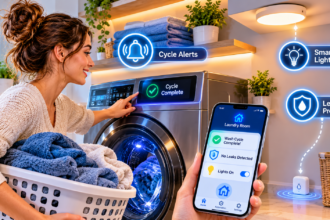
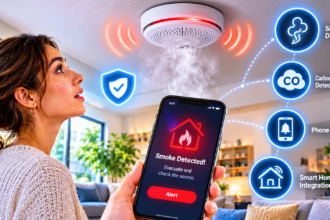
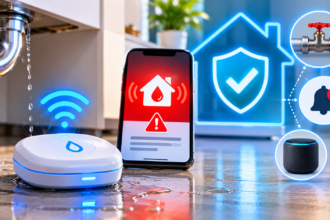
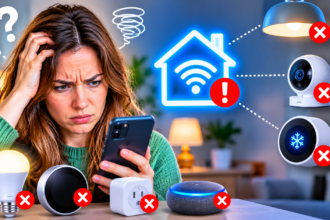

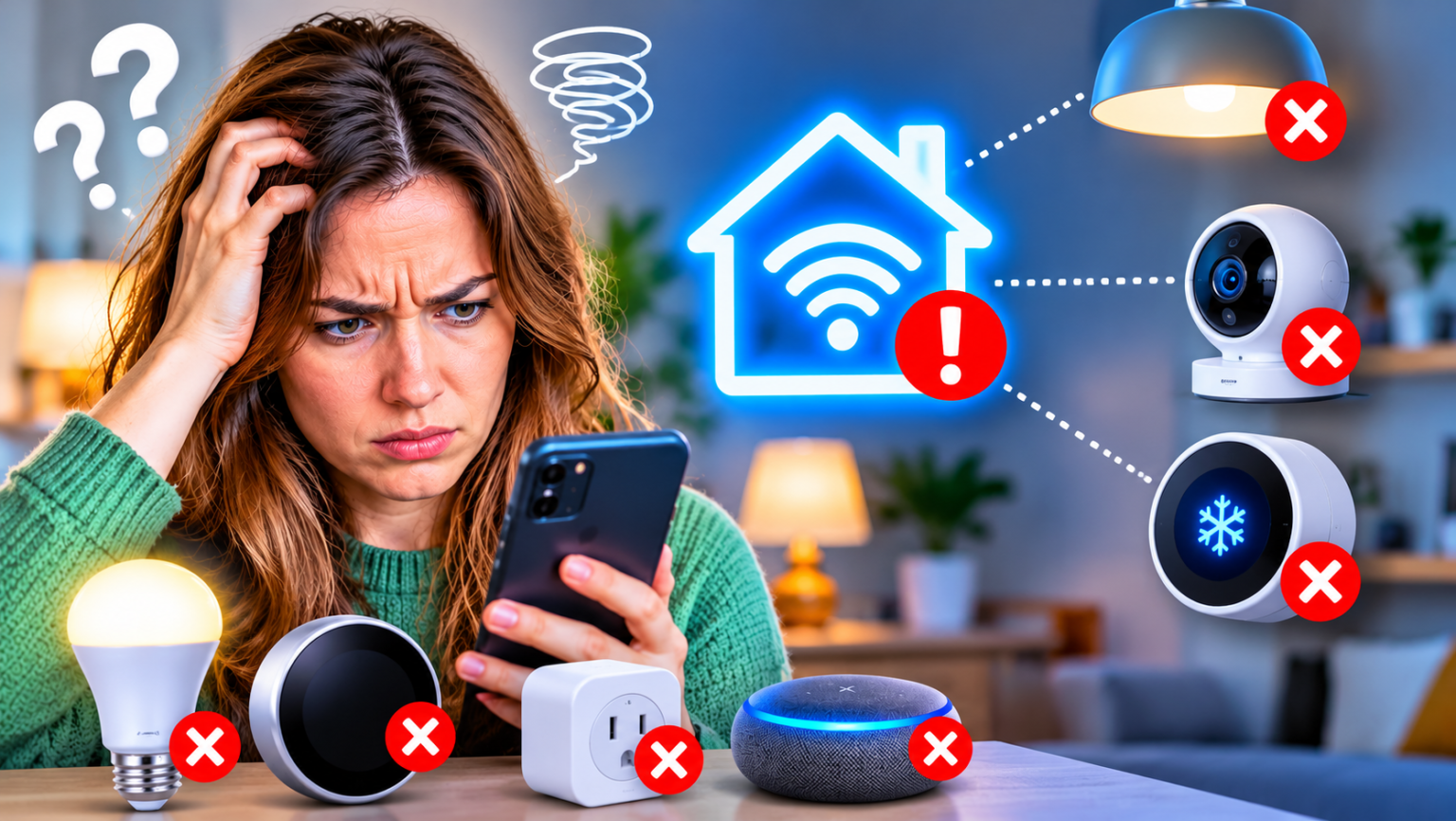
If your smart home routines are not working, the cause is almost always one of four things: a trigger that never fires, a condition that quietly blocks the action, a device that can’t respond, or a hub or account that has gone offline. This guide shows you how to find the culprit in about five minutes, then walks through the nine most common fixes for Alexa, Google Home, and Apple Home.
- Why Smart Home Routines Stop Working (and How to Find the Cause)
- 9 Common Reasons Smart Home Automations Fail (and the Fix for Each)
- Frequently Asked Questions
- Why did my smart home routine stop working suddenly?
- Why does my routine work when I press run but not automatically?
- Do smart home routines need the internet to work?
- Should I delete and recreate a broken routine?
- Why does my routine run late or at the wrong time?
- Can Alexa and Google Home routines conflict?
- How often should I check my routines?
- Conclusion
Why Smart Home Routines Stop Working (and How to Find the Cause)
Routines rarely break loudly. Most fail silently: the lights don’t come on at 6:30, and you only notice when you’re standing in the dark. That’s annoying, but it also means the problem is usually small and fixable.
Before you change anything, resist the urge to delete the routine and rebuild it. Rebuilding hides the cause, so the same failure often returns a week later. Diagnose first, then fix.
The Four Places a Routine Can Break
Every routine, on every platform, can fail in one of four layers:
- Trigger: the event that should start the routine never registers. A sensor is asleep, a schedule is set for the wrong time, or location sharing is off.
- Condition: the routine starts, but a filter stops it. For example, it only runs after sunset, but your sunset setting is off by an hour.
- Action: the routine runs, but a device doesn’t respond because it is unreachable, renamed, removed, or busy.
- Platform: the hub, account, or cloud service running the routine is offline, signed out, or out of date.
Knowing which layer failed cuts troubleshooting time dramatically. If the routine works when you run it manually, the problem is the trigger or a condition. If the manual run fails too, look at the action or the platform.
If your devices themselves keep dropping off the network, that is a connectivity problem rather than a routine problem. Start with our guide to why smart home devices keep going offline, then come back here.
A Five-Minute Diagnostic You Can Run on Any Platform
These steps work in Alexa, Google Home, and Apple Home with only small differences in wording:
- Run the routine manually. Use the run or play button inside the routine. If it works, your actions are fine and the problem is upstream.
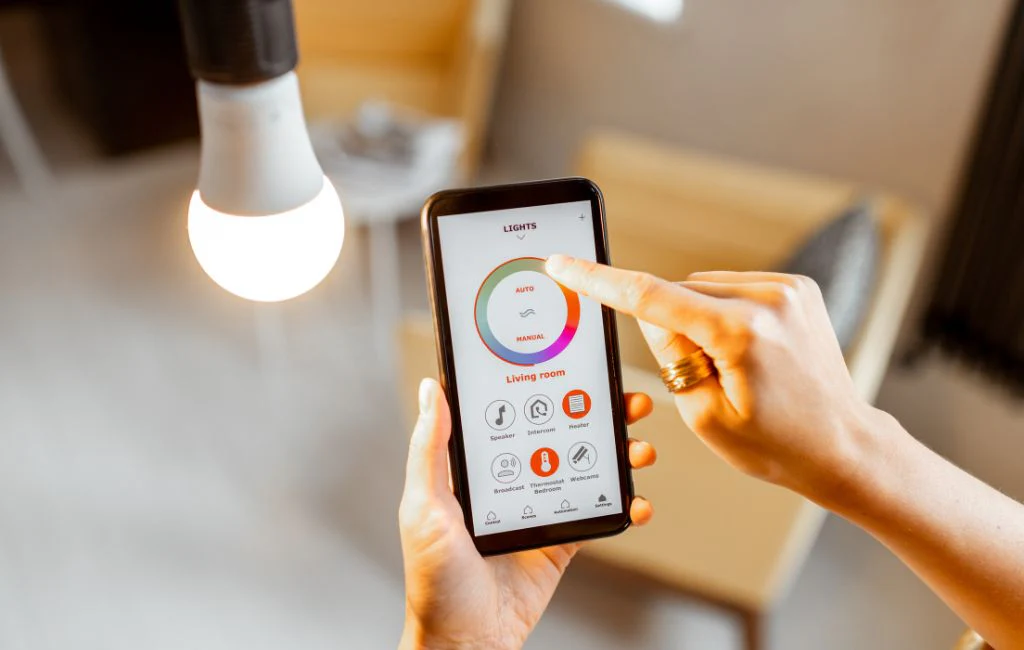
- Test each device on its own. Control every device from the app. A device that doesn’t respond has a connection problem, not a routine problem.
- Review the trigger. Check the time, sensor, or person that starts the routine. Is it correct, and is it still active?
- Check the platform. Is your hub or speaker online? Is the account link still valid? Is an app or firmware update pending?
- Look at the activity history, where available. Some apps show whether a routine ran. If it ran but nothing happened, suspect the action. If it never ran, suspect the trigger, condition, or platform.
Write down what you find, even in a quick note. A short log of what broke and why turns a mystery into a pattern, and patterns are much easier to fix for good.
9 Common Reasons Smart Home Automations Fail (and the Fix for Each)
The nine problems below cover most real-world failures. They are ordered roughly from most to least common, so start at the top.
- The hub or account is offline. Apple Home needs a home hub, such as a HomePod or Apple TV, to run automations when you’re away, and a hub that is offline or not set up properly means automations won’t fire. On Alexa and Google Home, check that the speaker or display running your routines is powered and connected. Fix: confirm your hub shows as online in the app and restart it if it doesn’t.
- A device was renamed, moved, or re-added. A routine points to a specific device. After you rename it, reset it, or pair it again, the old link can break, and the action quietly does nothing. Fix: open the routine, remove the missing device, and add it again. Make it a habit to review related routines whenever you change a device.
- The account link or skill expired. Devices connected through a third-party skill or a linked account can lose authorization after a password change or a long period of inactivity. Fix: unlink and re-link the service, then rediscover the devices.
- Time zone, daylight saving, or location settings are wrong. Time-based triggers depend on your time zone, and sunrise and sunset triggers depend on your home location. A wrong address or a missed daylight saving change shifts everything. Fix: verify the home location and time zone in each app and recheck them after clocks change.
- Conditions conflict or are too strict. Stack three filters, such as after sunset, only on weekdays, and only if motion is detected, and one of them will eventually block the routine. Platforms also handle multiple triggers differently: some treat them as any of these, others require all of them. Fix: remove conditions one at a time until the routine runs, then add back only the ones you truly need.
- Presence detection isn’t reliable. Location-based triggers depend on phone permissions, background activity, and battery settings that don’t shut the app down. Fix: set location access to always, disable aggressive battery optimization for the app, and test by walking out the door. Remember that a spare tablet or a guest can also change who counts as home.
- A sensor is asleep, low on battery, or cooling down. Motion sensors usually wait a short time before reporting again to save battery, and a weak battery causes missed events. Fix: replace the battery, check the sensor’s cooldown or sensitivity settings, and confirm the mounting angle covers the area.
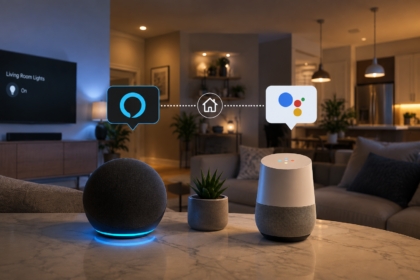
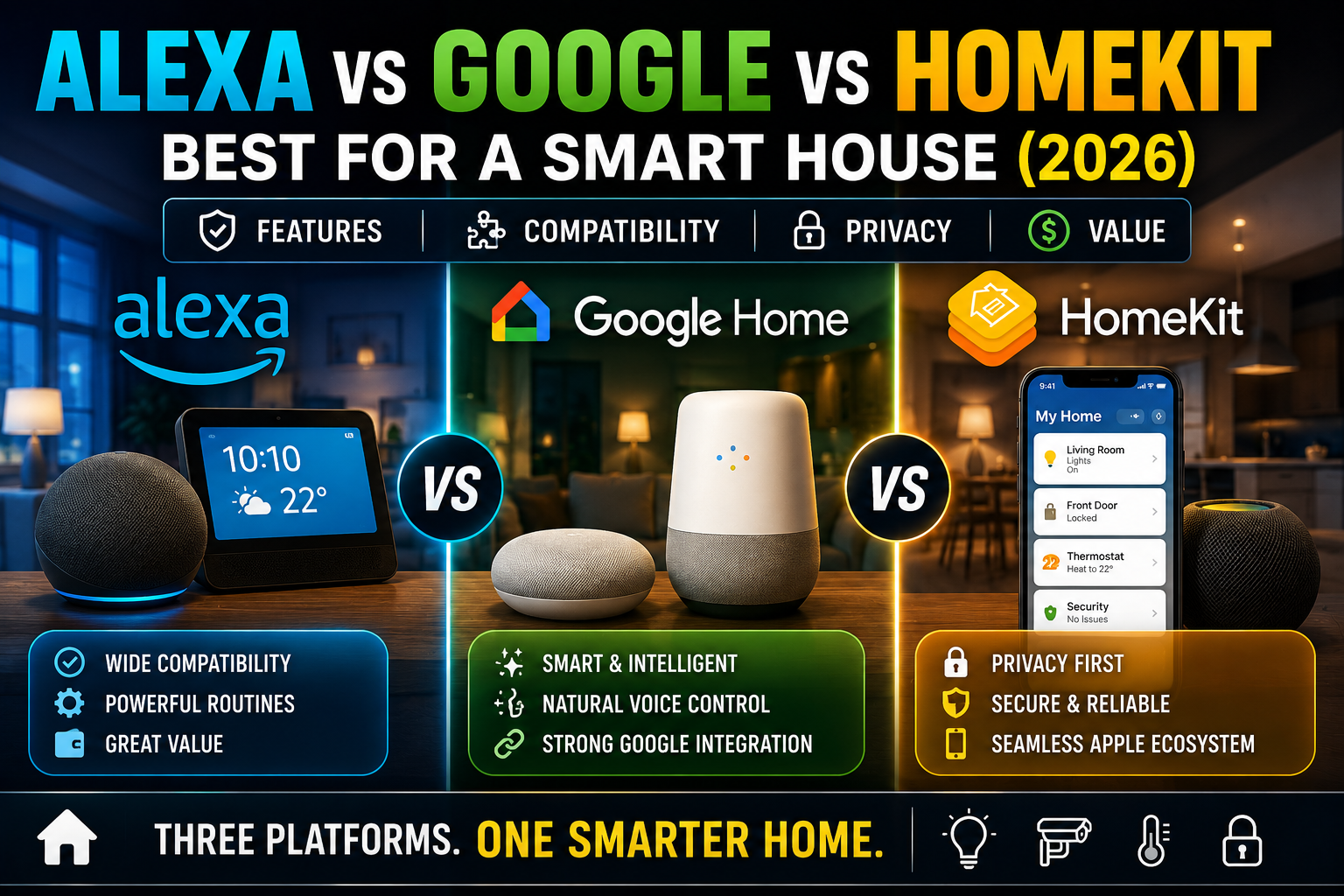
- Two routines are fighting each other. A Night Mode routine turns the lights off at 10 p.m. while a motion routine turns them back on. The same happens when Alexa and Google Home both control one device. Fix: list every routine that touches the same device, then add time windows or conditions so they don’t overlap. If you run more than one assistant, read our guide to running Alexa and Google Home together.
- An update changed something. App and firmware updates sometimes rename features, reset settings, or require a device to be paired again. Fix: update your apps and devices, open and re-save the affected routine to refresh it, and check the manufacturer’s release notes for known issues. If you use Thread devices, also confirm your border router is healthy, as explained in our guide to Thread border routers.
Quick-reference table: symptom, likely cause, first fix
| Symptom | Likely cause | First fix |
|---|---|---|
| Routine never runs | Hub or account offline, or routine disabled | Check hub status and make sure the routine is enabled |
| Runs, but one device ignores it | Device offline or renamed | Test the device alone, then re-add it to the routine |
| Runs at the wrong time | Time zone, location, or daylight saving | Verify home location and time zone |
| Works manually, not automatically | Trigger or condition problem | Remove conditions one at a time |
| Presence routine is inconsistent | Location permissions or battery limits | Set location to always and disable battery limits |
| Motion routine misses events | Sensor cooldown or low battery | Replace the battery and adjust placement |
| Lights flicker on and off | Conflicting routines | Audit every routine that touches the device |
| Worked for months, then stopped | Expired link or recent update | Re-link the service and update the app and firmware |
Habits that keep routines from breaking
- Name things clearly and rename them rarely. Stable names for devices, rooms, and routines prevent broken links.
- Prefer local execution where it is supported. Routines that run on your hub or devices keep working when the internet doesn’t. Our guide to offline smart house automations explains how.
- Let one platform own each device. Two assistants controlling the same light is the fastest route to conflicts.
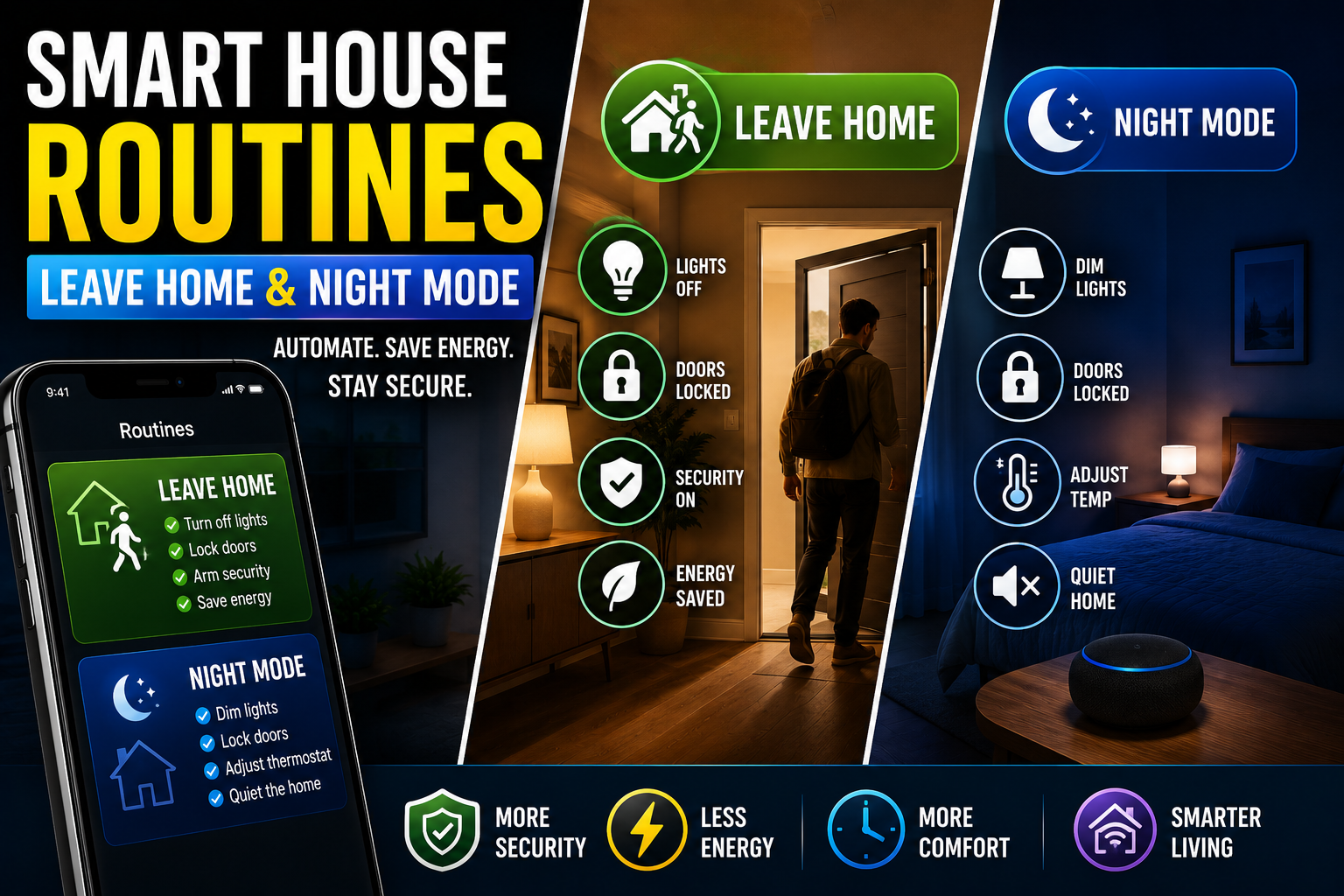
- Add a confirmation to critical routines. End a security or leaving-home routine with a notification so you know it actually ran. Our Leave Home and Night Mode routines are a good place to add this.
- Test after every change. A quick manual run after editing a device or routine catches most problems immediately.
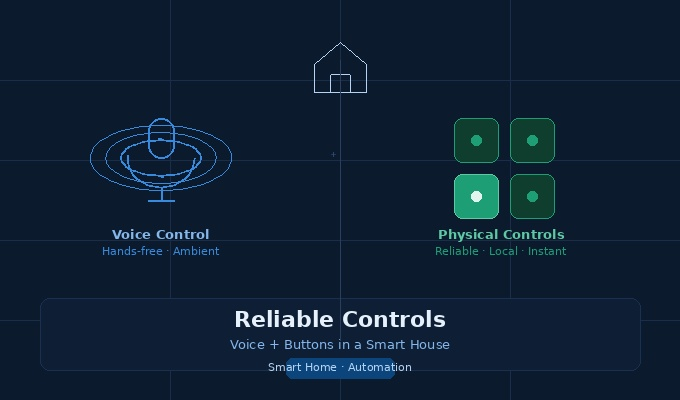
- Keep a physical backup. A wall switch or a smart button means a failed routine never leaves you stuck. See our guide to voice and button controls.
- Replace sensor batteries on a schedule. Do it twice a year instead of waiting for a routine to fail.
Frequently Asked Questions
Why did my smart home routine stop working suddenly?
The most common causes are a device that was renamed or re-added, an expired account link, a hub that went offline, or a recent app or firmware update. Run the routine manually first to find out which layer failed.
Why does my routine work when I press run but not automatically?
If the manual run works, your actions and devices are fine. The problem is the trigger or a condition, such as a wrong time zone, a sensor that isn’t reporting, or a filter that is blocking the routine.
Do smart home routines need the internet to work?
It depends on the platform and the devices. Many routines depend on a cloud service, so an internet outage stops them. Routines that run locally on a hub or on the devices themselves are more reliable, so use local execution whenever your platform supports it.
Should I delete and recreate a broken routine?
Only after you’ve diagnosed the problem. Recreating a routine without finding the cause usually brings the failure back. If you do rebuild it, do it once you know what broke, and test it right away.
Why does my routine run late or at the wrong time?
Check your home location, time zone, and any sunrise or sunset offsets. Also confirm that no other routine is delaying or overriding it. These problems often appear right after a daylight saving change.
Can Alexa and Google Home routines conflict?
Yes. If both assistants control the same device with different schedules or conditions, they can undo each other. Assign each device to one primary platform, or build routines with clear time windows so they don’t overlap.
How often should I check my routines?
A quick review every few months is enough for most homes. Also check them after any firmware update, router change, or device replacement, since those are the moments routines are most likely to break.
Conclusion
When smart home routines stop working, the fix is rarely complicated. Work through the four layers, trigger, condition, action, and platform, and you will find the cause far faster than by guessing or rebuilding from scratch.
Start small: run your most important routine manually today, add a confirmation notification, and write down your list of routines. Those three habits catch most failures before they cost you a cold house or a dark hallway. Then use the checklist above to keep your automations dependable for the long run.