




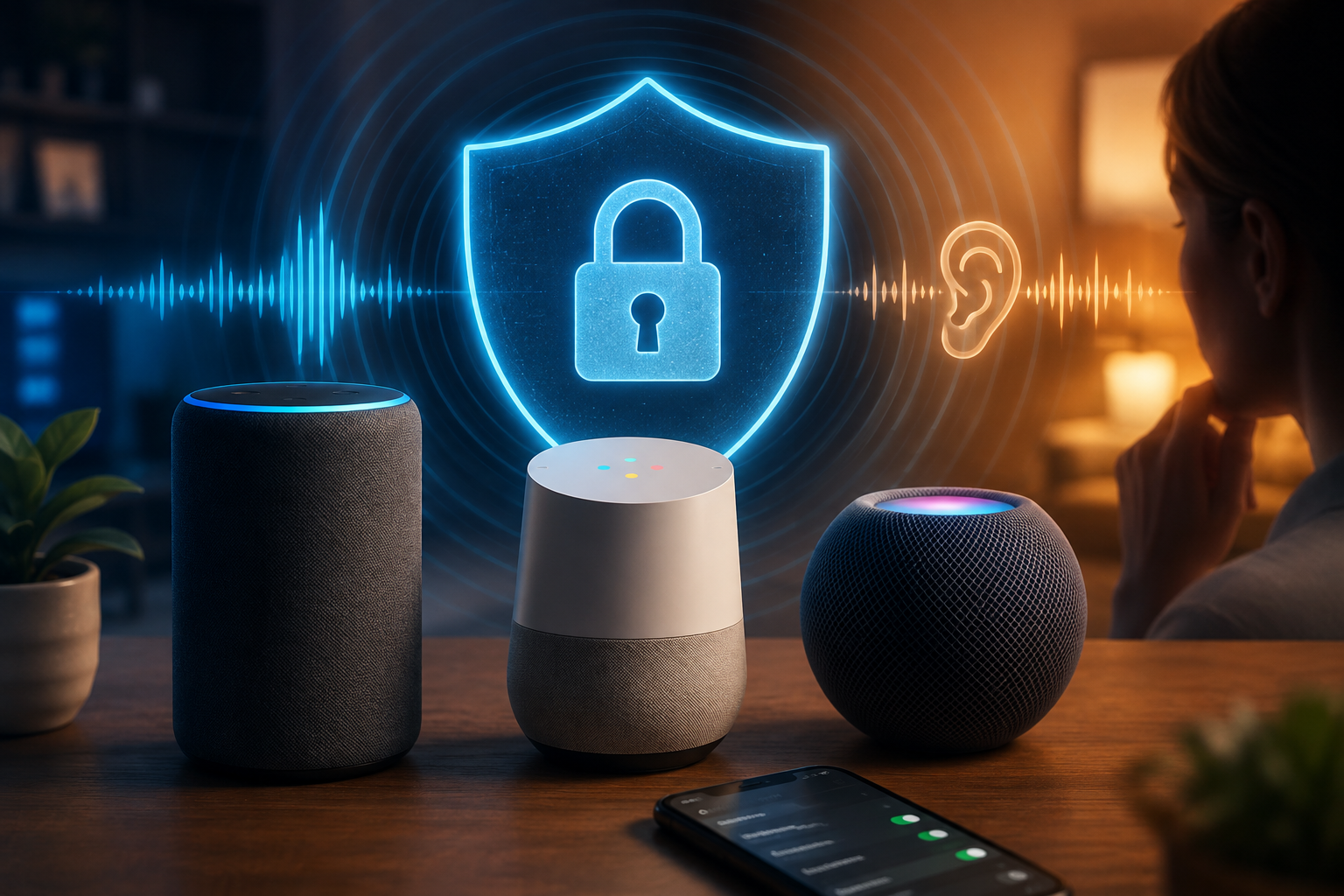
You’ve picked a platform, built a morning routine, maybe even gotten two assistants coexisting peacefully under one roof. Somewhere in the middle of all that convenience, a smaller, quieter question tends to surface: what exactly is this thing doing with everything it hears?
- How Voice Assistants Actually Listen (And What “Always Listening” Really Means)
- What Amazon Alexa Records, Stores, and Uses
- What Google Assistant Records, Stores, and Uses
- What Apple Siri Records, Stores, and Uses
- The Side-by-Side Privacy Comparison
- Third-Party Skills, Apps, and Smart Home Integrations: The Overlooked Risk
- Kids, Guests, and Shared Households: Extra Considerations
- Your 20-Minute Privacy Lockdown Checklist
- What You Give Up When You Lock Everything Down
- Frequently Asked Questions
- Sources
It’s a fair question, and it’s usually followed by a wave of vague anxiety and not much action, because most privacy explainers either wildly oversell the danger (“your speaker is spying on you 24/7”) or bury the real controls under a mountain of corporate policy language nobody reads. Neither approach actually helps you do anything.
How Voice Assistants Actually Listen (And What “Always Listening” Really Means)
The single most common misconception about smart speakers is that they stream everything happening in your home to a server somewhere, all the time. That isn’t how the wake-word system works, and understanding the actual mechanism clears up most of the anxiety in one step.
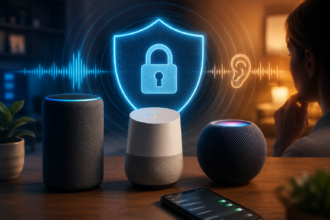
Every Alexa, Google, and Siri-enabled device runs a small, on-device model whose only job is to listen locally for a specific sound pattern — “Alexa,” “Hey Google,” “Hey Siri.” This detection happens entirely on the device itself, using a tiny sliver of processing power, and nothing is sent anywhere until that pattern is matched. Once the wake word is detected, the device starts streaming audio to the cloud (or, on some newer Apple and Google hardware, processes a portion on-device) so the assistant can interpret the actual request.
The privacy-relevant part is what happens next, not what happens before. Two things routinely go wrong in real households. First, false activations: your speaker mishears something in a TV show, an argument, or a conversation as its wake word and starts recording a snippet it was never meant to capture. Second, over-capture: the assistant sometimes keeps listening a beat or two longer than necessary if it thinks you’re still mid-sentence, occasionally picking up a few seconds of unrelated conversation at the tail end of a legitimate request.
Neither of these is a conspiracy. They’re the predictable cost of a system built to react instantly to natural speech. But they’re exactly why the review and deletion tools covered below matter more than most people realize, because false activations are the recordings you never meant to create in the first place.
What Amazon Alexa Records, Stores, and Uses
Alexa records the audio that follows a detected wake word and sends it to Amazon’s cloud for processing. That recording is saved to your account by default and is used, per Amazon’s own explanation, to improve speech recognition accuracy, refine Alexa’s understanding of your voice and preferences, and inform broader product analytics.
Two developments are worth knowing if your mental model of Alexa privacy is a few years out of date. Amazon has previously acknowledged that human reviewers listen to and transcribe a portion of voice recordings as part of improving the service, a practice that drew scrutiny when it became public. And more recently, Amazon phased out the “Do Not Send Voice Recordings” option that had let some Echo owners keep audio requests from reaching the cloud at all — that setting folded into the existing “Don’t Save Recordings” control, which still deletes your recordings but no longer stops them from being processed in Amazon’s cloud first.
What you can still control is meaningful. Inside the Alexa app, under More → Alexa Privacy → Manage Your Alexa Data, you can review your voice history entry by entry, listen back to individual recordings, delete recordings by date range, device, or household profile, and set automatic deletion on a rolling schedule (a common choice is deleting everything older than three months). You can also disable saving your voice recordings going forward, which stops new audio from being retained on your account, though Amazon notes this can make Alexa slightly less accurate at recognizing your specific voice over time.
If you use a shared Amazon household profile, note that voice history is typically tied to the profile that was active during the request, not just the device — worth checking if multiple people use the same Echo.
What Google Assistant Records, Stores, and Uses
Google Assistant’s approach is built around a single control called Web & App Activity, and specifically a sub-setting called “Include voice and audio activity.” This setting is what determines whether your spoken requests to Google Assistant, Search, and Maps get saved to your Google account at all.
The important nuance is that this setting is off by default for new accounts, meaning Google Assistant does not save your audio recordings to your account unless you’ve actively opted in. If you never turned it on, there likely isn’t a saved audio archive tied to your voice for Google to show you — though Google still processes the audio in the moment to generate a response, it just doesn’t retain the recording afterward. If you (or a previous account setup) did turn it on, recordings are stored and can be reviewed, played back, and deleted individually or in bulk from your Google Account’s Activity page.
Google, like Amazon, has acknowledged that a small percentage of stored audio snippets are reviewed by human language experts to improve accuracy across languages and accents, with company statements putting that figure at a small fraction of total recordings and noting the reviewed clips aren’t linked back to individual accounts during the review process. Google also offers auto-delete windows for saved audio and other activity, typically selectable in three-, eighteen-, or thirty-six-month increments, so you can cap how long anything sticks around without having to remember to clear it manually.
To check or change any of this, go to myaccount.google.com → Data & Privacy → Web & App Activity, and look specifically for the audio/voice toggle rather than assuming the general activity setting covers it — they’re related but distinct.
What Apple Siri Records, Stores, and Uses
Apple’s privacy positioning has always leaned on doing more processing locally, and Siri reflects that design choice more than either of its major competitors. A significant share of Siri request processing — especially simple, on-device tasks like setting a timer or toggling a HomeKit accessory — happens directly on your iPhone, HomePod, or Apple TV without ever reaching Apple’s servers. More complex requests that need cloud processing are still sent off-device, but Apple assigns them a random device identifier rather than tying the request to your Apple ID, and that identifier resets periodically.
Apple does not, by default, keep an audio recording tied to your identity the way historical Alexa and opted-in Google accounts have. Siri does retain transcripts of your interactions for a period to improve the service, and you can review and delete Siri history from Settings → Siri & Search → Siri & Dictation History on iOS, or the equivalent path in System Settings on a Mac. Apple’s grading program, in which a limited set of interactions may be reviewed by humans to improve accuracy, has historically been opt-in rather than default, following changes Apple made after facing criticism similar to what Amazon and Google encountered.
The trade-off with Apple’s approach is choice, not privacy in the abstract. Siri’s more private-by-default design is easier to trust out of the box, but as our comparison of Alexa vs Google Assistant vs Apple Home covers, that same design philosophy is part of why the Apple Home device catalog has historically been narrower and pricier than Alexa’s or Google’s.
The Side-by-Side Privacy Comparison
| Amazon Alexa | Google Assistant | Apple Siri | |
|---|---|---|---|
| Recordings saved by default | Yes | No (opt-in) | No |
| Human review of audio | Yes (disclosed) | Yes, small percentage (disclosed) | Limited, opt-in grading |
| Easiest way to see history | Alexa app → Alexa Privacy | myaccount.google.com → Web & App Activity | Settings → Siri & Search |
| Auto-delete option | Yes, rolling window | Yes, 3/18/36-month windows | Manual deletion of history |
| On-device processing | Wake word only | Wake word, partial on newer hardware | Wake word plus many full requests |
| Requires ecosystem device | Echo speaker/display | Google/Nest speaker or Android phone | iPhone, HomePod, or Apple TV as hub |
No single row makes one platform an obvious winner across the board. Alexa gives you the most granular manual control once you go looking for it, Google’s opt-in default means many users never generate a stored audio archive at all, and Apple minimizes what leaves the device in the first place. What matters more than picking a “winner” is knowing which controls apply to whichever assistant you actually run — which, per our guide to Alexa vs Google vs HomeKit: Best for a Smart House, may honestly be more than one.
Third-Party Skills, Apps, and Smart Home Integrations: The Overlooked Risk
Most privacy conversations stop at the assistant itself and miss the bigger surface area: everything you’ve connected to it. Every skill you enable on Alexa, every service you link in Google Home, and every HomeKit accessory you pair carries its own separate privacy policy, its own data practices, and its own security track record — and those are frequently weaker than the platform they plug into.
A few practical habits go a long way here. Periodically audit which skills and linked accounts are actually active; the Alexa app’s Skills & Games → Your Skills and Google Home’s linked services menu both show what’s connected, and most households are surprised by how many stale integrations are still sitting there from a device they stopped using years ago. Remove anything you no longer use, since an inactive integration is still a live data-sharing relationship until you revoke it.
Pay closer attention to categories where the data is sensitive by nature: smart locks, cameras, and anything with a microphone of its own. Our guide to Smart Locks for a No-Drill Home covers what to check before buying, and the same due diligence applies to any camera or video doorbell you’re about to link to a voice assistant, since that link often means the manufacturer, the assistant platform, and potentially a third-party monitoring service all have some level of access.
Finally, favor Matter-certified devices where you can. Beyond the interoperability benefits discussed in our piece on running Alexa and Google Home together, Matter’s certification process includes baseline security requirements that a lot of budget, no-name smart devices simply never had to meet.
Kids, Guests, and Shared Households: Extra Considerations
Households with children add a layer worth taking seriously on its own. Amazon has previously faced regulatory penalties tied to how children’s voice data was retained, and both Alexa and Google offer dedicated kids’ profiles (Amazon Kids, Google’s supervised accounts) with different, generally more restrictive, default data practices than adult profiles. If a child regularly talks to a shared household speaker, setting up a proper kids’ profile rather than letting them use the primary adult account is worth the ten minutes it takes.
Guests are a smaller but real consideration too. If you frequently host people who’ll be talking near your speakers, a periodic bulk-delete of voice history — monthly is reasonable for most households — keeps casual conversations from accumulating in an archive tied to your account indefinitely. This pairs naturally with the automatic deletion windows covered in the checklist below, so it’s not something you have to remember to do manually every time.
Your 20-Minute Privacy Lockdown Checklist
You don’t need to abandon voice control to take this seriously. Work through this once, and most of it never needs revisiting:
- Alexa: Open the Alexa app → More → Alexa Privacy → Manage Your Alexa Data. Set automatic deletion to 3 months, review recent history for anything unexpected, and check which skills are still linked under Skills & Games.
- Google Assistant: Go to myaccount.google.com → Data & Privacy → Web & App Activity, confirm whether “Include voice and audio activity” is on, and set an auto-delete window (3 months is the tightest option) if it is.
- Siri: On iPhone, go to Settings → Siri & Search → Siri & Dictation History and review or delete stored interactions. Confirm Analytics & Improvements sharing settings under Privacy & Security if you want to opt out of grading entirely.
- Every platform: Turn off purchase-by-voice or confirmation-free voice purchasing unless you specifically want it, since this is the single highest-stakes default worth checking.
- Third-party audit: Open the connected skills/services list on whichever assistant you use most and remove anything you don’t recognize or haven’t used in the last six months.
- Physical mute: Get comfortable using the physical mute button on your speakers during sensitive conversations. It’s a hardware-level microphone cutoff, not a software setting, which makes it the one control you can trust completely regardless of what’s happening in the cloud.
- Set a recurring reminder. A privacy checkup every few months takes five minutes and keeps your voice history from quietly growing into something you’d rather not have sitting on someone else’s server.
What You Give Up When You Lock Everything Down
It’s worth being honest that these controls aren’t free. Deleting voice history and disabling audio retention can make an assistant slightly slower to adapt to your specific voice, accent, or vocabulary, since a chunk of that personalization comes from the very data you’re clearing. Voice Match and similar per-person recognition features on shared speakers rely on some retained audio data to distinguish household members, so aggressive deletion schedules can occasionally mean re-training recognition more often.
None of that is a reason to skip the basics — automatic deletion windows and a periodic skills audit cost you essentially nothing in day-to-day performance. But if you’re deciding how aggressively to lock things down, it’s a genuine trade-off between privacy and a slightly smoother personalized experience, not a free lunch in either direction. Most households land somewhere in the middle: a 3-month auto-delete window, purchase confirmations left on, and voice recognition features kept active for convenience.
Frequently Asked Questions
Is my smart speaker listening to everything I say, all the time?
No. The device only streams audio to the cloud after detecting its wake word locally. False activations happen, which is exactly why regularly reviewing and deleting voice history matters, but there’s no continuous cloud stream of everyday conversation.
Which voice assistant is the most private out of the box?
Apple Siri generally has the strongest default privacy posture, since it processes more requests on-device and does not save identity-linked audio recordings by default. Google Assistant’s audio-saving setting is also off by default for new accounts, while Alexa has historically saved recordings unless you actively opt out.
Can I use a voice assistant without any of my data being stored?
Not entirely, since some processing has to happen to generate a response. But you can minimize retention significantly: disable audio saving where that’s an option, set the shortest available auto-delete window, and periodically clear history manually.
Do smart home skills and third-party apps see my voice recordings?
Generally no — most skills receive the parsed command (for example, “turn on the lights”), not the raw audio. But they do receive whatever data you send them through your usage, so it’s still worth reviewing which ones you’ve connected and removing ones you no longer use.
Does deleting my voice history delete everything the company knows about me?
No. Voice history deletion typically covers audio recordings and related transcripts, but purchase history, calendar access, linked account data, and other activity are usually managed through separate settings within each platform’s broader privacy dashboard.
Sources
- Amazon Customer Service — Alexa Privacy, voice history review, and automatic deletion documentation
- Google Account Help — Web & App Activity and voice/audio recording management documentation
- Apple — Siri & Dictation privacy documentation and Siri grading/improvement program disclosures
- USA Today, coverage of Amazon’s phase-out of the “Do Not Send Voice Recordings” Echo setting
- Reporting on Google Assistant’s human-review language expert program and default audio-saving changes
- Federal Trade Commission enforcement actions related to Amazon’s handling of children’s voice data
Disclaimer
This article is provided for general informational purposes only and reflects publicly available policy information and product behavior at the time of writing. Privacy settings, menu locations, retention windows, and company data practices change frequently across Amazon, Google, and Apple’s platforms, so always verify current options directly in each company’s official app or account settings before relying on them. This is not legal advice. Home Smart Guide is not affiliated with, sponsored by, or endorsed by Amazon, Google, or Apple. Product and brand names mentioned are trademarks of their respective owners.