

Smart home network security means protecting the Wi-Fi network and accounts that connect your cameras, locks, and sensors. The most effective steps are simple: secure your router, put smart devices on a separate network, use unique passwords with two-step sign-in, and keep firmware updated.
This guide explains each step in plain language. You do not need to be a network expert, and most changes take minutes. By the end, you will have a short checklist you can finish in one evening.
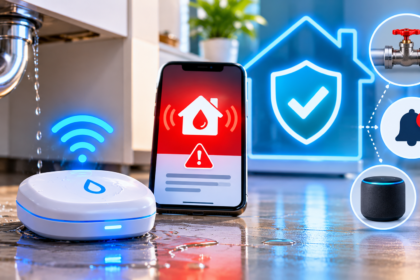
A home router with a separate network labeled for smart devices, next to a phone showing a security checklist Suggested image: a router and a phone with a checklist. Alt text: “smart home network security checklist with router and phone”.
Why Smart Home Network Security Matters
A smart home adds many small computers to your life. Each camera, doorbell, plug, and sensor connects to your network, and each one is a possible way in if it is set up carelessly.
Most problems are not movie-style hacks. They come from ordinary mistakes: a router with its default password, a weak login reused on five sites, or a camera that never got a security update. Fixing these removes most of the risk.
What Is Actually at Risk
Think about what your devices can see and do.
- Cameras and video doorbells can show the inside and outside of your home.
- Smart locks and garage controllers can open doors.
- Sensors and alarms reveal when you are home or away.
- Speakers and displays may have microphones.
- Your accounts hold names, addresses, and payment details.
The goal is not perfect security. It is to make your home a much harder target than the next one, and to limit the damage if one device fails.
Common Ways Smart Homes Get Into Trouble
Most incidents follow a short list of causes. Knowing them tells you where to focus.
- Default or weak passwords on routers, cameras, and apps.
- Reused passwords that leak from one website and work on another.
- Old firmware with known flaws that were never patched.
- Open remote access set up carelessly on a router.
- Phishing messages that trick someone into sharing a login.
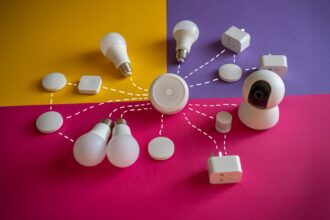
- Everything on one network, so one weak gadget can reach your laptop and phone.
None of these needs advanced skill to fix. The next sections go through them in order.
Secure the Router First
Your router is the front door of your digital home. If it is weak, every device behind it is weak too. Start here before you tune anything else.
Change the Defaults and Update the Router
Many routers ship with an admin username and password printed on a sticker. Anyone who knows the model can guess them. Change both the Wi-Fi password and the separate admin login.
Follow these basics:
- Use a long, unique Wi-Fi password. A passphrase of several random words is easy to type and hard to guess.
- Change the router admin password. It should be different from your Wi-Fi password.
- Choose WPA3 if available, otherwise WPA2. Avoid old options such as WEP or open networks.
- Turn on automatic firmware updates if your router offers them, or check for updates every few months.
- Replace very old routers. If the manufacturer no longer provides updates, the router is a risk.
Turn Off Risky Features You Do Not Use
Some router features are convenient but widen your exposure. Review the settings and switch off what you do not need.
- WPS (the quick-connect button or PIN). It is a known weak point.
- UPnP, which lets devices open doors in your router automatically. Turn it off unless something truly needs it.
- Remote administration, which lets you manage the router from the internet. Leave it off unless you have a strong reason.
- Port forwarding you set up long ago and forgot.
If you need to see a camera while away, use the manufacturer’s secure cloud app or a trusted VPN, not an open port on your router.
Separate Your Smart Devices From Your Computers
This is the single most useful step after securing the router. Put smart gadgets on their own network so that a problem with a cheap sensor cannot reach your laptop, phone, or work files.
Use a Guest or IoT Network
Most home routers offer a guest network. It is the easiest way to split your devices into two groups.
- Main network: laptops, phones, tablets, and anything with personal files.
- Guest or IoT network: cameras, plugs, bulbs, speakers, and sensors.
Give the second network its own name and a different password. Then connect your smart devices to it and keep personal devices off it.
A caution about setup. Some devices need to be on the same network as your phone during setup. If a device will not connect, move the phone to the smart network briefly, finish setup, and move back. Voice assistants and casting features can also behave differently across networks, so test the main functions after you move a device.
Keep High-Risk Devices Extra Separate
If your router supports more than one extra network, consider giving the most sensitive devices their own space.
- Cameras and doorbells deserve strict separation because of the video they handle.
- Smart locks and alarms should stay on a reliable, secured network.
- Cheap or unbranded gadgets are best kept away from everything else.
Our guide to smart home security for beginners explains which devices to prioritize if you are building a system from scratch.
Lock Down Accounts, Apps, and Updates
A strong network does not help if someone logs in to your account with a stolen password. Protect each account as carefully as you would your bank login.
Use Unique Passwords and Two-Step Sign-In
Every smart home app should have its own password. A password manager makes this easy because it creates and remembers them for you.
- Use a password manager to generate long, unique passwords.
- Turn on two-step sign-in for every camera, lock, and hub account that offers it.
- Prefer an authenticator app over text messages where possible.
- Use a separate email address for smart home accounts if you want less spam and less exposure.
- Never share a login between family members. Create separate users with the right permissions instead.
Keep Firmware and Apps Updated
Updates fix security flaws that attackers already know about. Delaying them is one of the most common reasons devices stay vulnerable.
- Turn on automatic updates for apps and devices whenever you can.
- Check devices without auto-updates every month or two.
- Update the hub and the router too, not just the gadgets.
- Retire unsupported devices. If a camera or plug no longer receives updates, replace it.
Before you buy anything new, look at how long the maker promises to provide security updates. A cheap device with no update plan can cost you more in the end.
Protect Cameras, Locks, and Doorbells
Some devices deserve extra attention because they guard your home and your privacy. Spend a little more time on these.
Cameras and Video Doorbells
Cameras are a frequent target because attackers want the video or want to use the device for other purposes. Apply every step above, then add a few specific habits.
- Change the default camera password immediately.
- Turn off features you do not use, such as remote access you never need.
- Place indoor cameras with care. Avoid bedrooms and bathrooms.
- Use privacy shutters or schedules to disable indoor cameras when you are home.
- Review who has access in the app and remove old users.
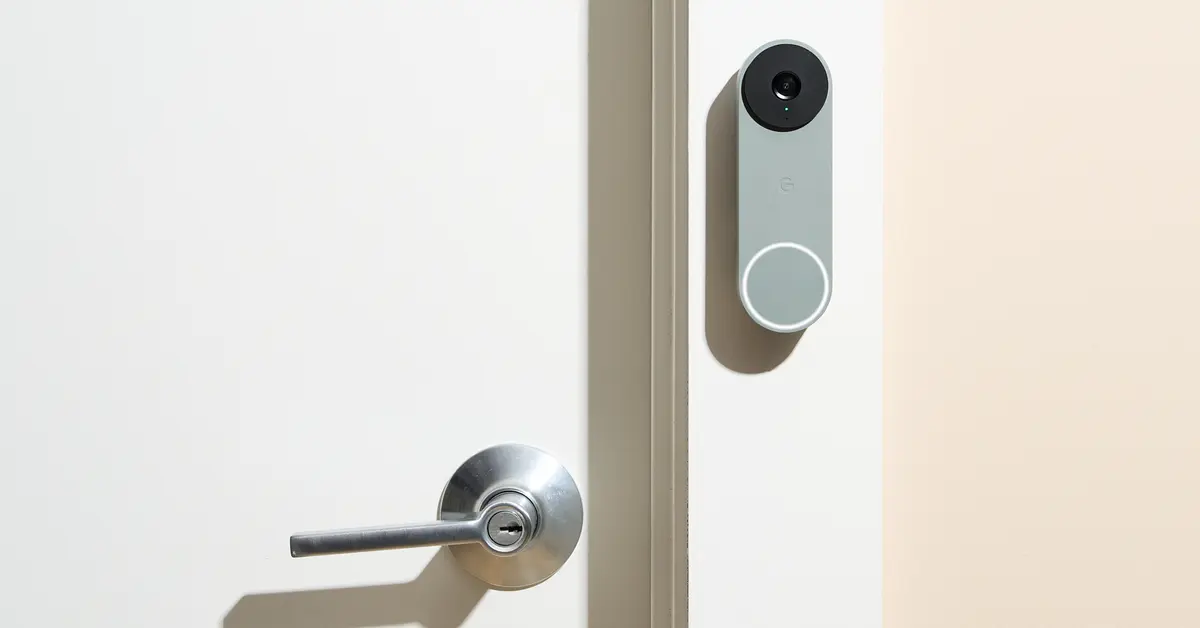
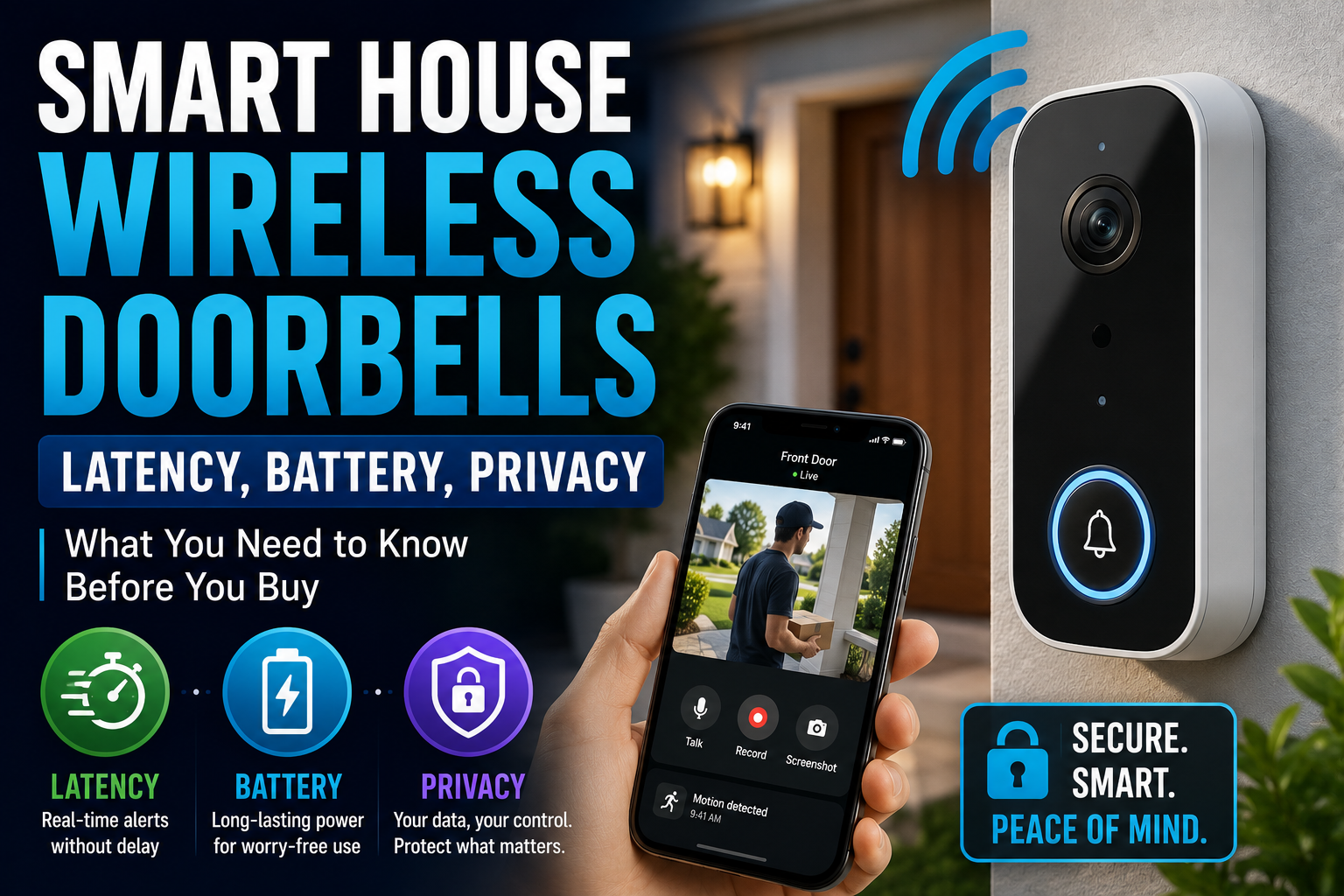
Our guides to outdoor security cameras and video doorbells for beginners cover placement, power, and what to look for before you buy.
Smart Locks and Alarm Systems
A lock should be both easy to use and hard to abuse.
- Create unique codes for each person, and delete old ones.
- Enable activity logs, and check them occasionally.
- Keep a physical key backup somewhere safe, not under the mat.
- Secure the account, because a stolen password can unlock a door remotely.
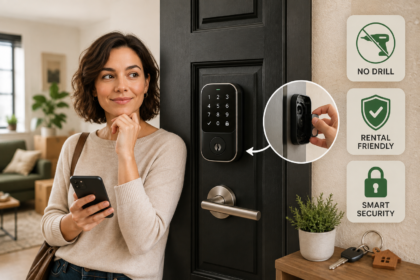
For a lock that works without drilling, see our guide to smart locks for a no-drill home. If you prefer keeping control local and avoiding cloud accounts, our DIY alarm guide shows how to build a system without monthly fees.
Prefer Local Control Where It Makes Sense
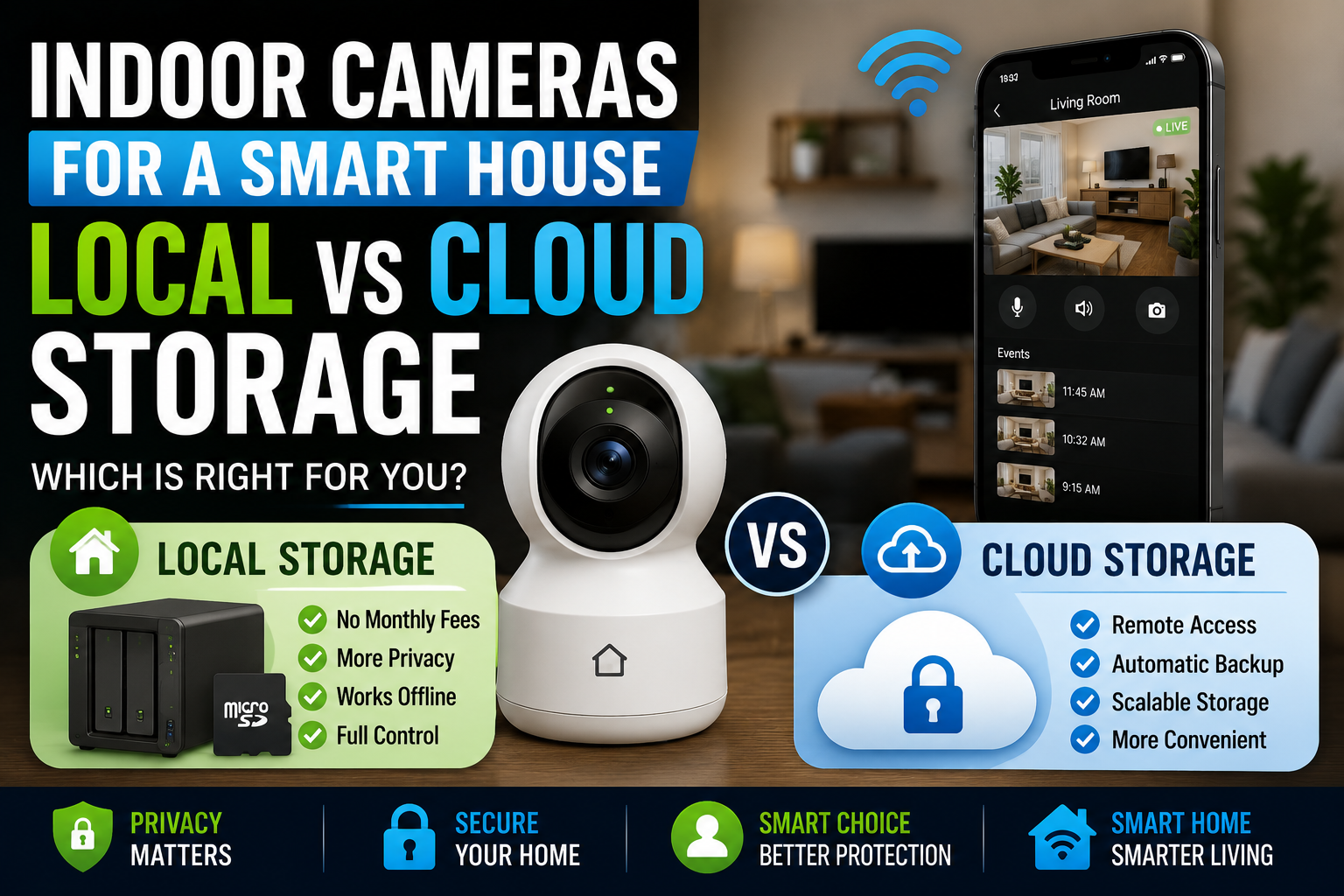
Devices that work over local protocols can keep running without sending everything through a company’s servers. Standards such as Matter, Thread, and Zigbee support local control, and a local hub can reduce how much data leaves your home.
Local control is not automatically safer, and cloud services can be well run. But fewer accounts and fewer outside connections mean fewer places for something to go wrong.
Watch for Phishing and Fake Alerts
Not every threat comes through the network. Many start with a message that looks like it came from your camera brand, your delivery service, or your bank.
Be suspicious of urgent links. A text saying your doorbell is offline or your account is locked may be fake. Do not tap the link. Open the official app directly, or type the company’s address yourself, and check the alert there.
Teach everyone in the house the same rule. Children, grandparents, and guests with access to your Wi-Fi are often the easiest targets, so a two-minute family conversation is worth the effort.
Be Careful With Guests, Visitors, and Secondhand Devices
Sharing access is convenient, but it needs limits.
- Give visitors the guest network, not the main one, so their phones cannot reach your devices.
- Use temporary access for contractors and sitters, and remove it when they leave.
- Reset secondhand devices to factory settings before you set them up, and remove them from the previous owner’s account.
- Sign out and reset any device you sell, give away, or recycle, so it is no longer tied to your account.
These small habits close gaps that technology alone cannot fix.
A Quick Reference: Risks and Fixes
This table summarizes the main risks and the simplest fix for each.
| Risk | Why it matters | Simple fix | Time needed |
|---|---|---|---|
| Default router login | Easy to guess | Change Wi-Fi and admin passwords | 10 minutes |
| One network for everything | A weak gadget can reach your laptop | Move smart devices to a guest or IoT network | 20 minutes |
| Reused passwords | One leak opens many accounts | Use a password manager | 30 minutes |
| No two-step sign-in | A stolen password is enough | Turn on two-step sign-in | 15 minutes |
| Old firmware | Known flaws stay open | Enable automatic updates | 10 minutes |
| Unused remote access | Extra door into your network | Disable UPnP and remote admin | 10 minutes |
| Unsupported devices | No future fixes | Replace them | Varies |
Build a Simple Routine to Keep It Secure
Security is not a one-time project. A few small habits keep your setup healthy without taking over your life.
A One-Evening Checklist
If you do nothing else, work through these steps.
- Change the router’s Wi-Fi and admin passwords.
- Turn on WPA3 or WPA2 and disable WPS and UPnP.
- Create a guest or IoT network and move your smart devices onto it.
- Install a password manager and update your smart home passwords.
- Turn on two-step sign-in for cameras, locks, and hub accounts.
- Enable automatic updates on devices and apps.
- Remove old users and old devices from every app.
Monthly and Yearly Habits
- Monthly: Check for pending updates and review the list of connected devices on your router.
- Every few months: Review user access in camera and lock apps.
- Yearly: Replace batteries, test alarms, and decide whether any device is too old to trust.
If a device keeps disconnecting after you change networks, the cause is usually signal strength or a setting, not a security fault. Our guide on why smart devices go offline walks through the common fixes.
What to Do If You Suspect a Problem
If you see an unknown device on your network, odd activity in a camera log, or a login alert you did not trigger, act quickly but calmly.
- Change the password for the affected account, then enable two-step sign-in.
- Sign out all sessions in the app if it offers that option.
- Update the device and the router.
- Restore the device to factory settings if you cannot trust it, and set it up again.
- Contact the manufacturer if you think the device itself is faulty.
Do not ignore repeated warnings. A few minutes of cleanup is far easier than dealing with a serious problem later.
Frequently Asked Questions
What is smart home network security?
It is the set of steps that protect the network, devices, and accounts in a smart home. The main steps are a secured router, a separate network for smart devices, strong unique passwords, two-step sign-in, and regular updates.
Do I really need a separate network for smart devices?
It is not required, but it is one of the most effective steps. A separate guest or IoT network keeps a weak or old gadget away from your laptop, phone, and files.
Can my smart camera be hacked?
Any internet-connected device can be targeted, but most cases involve weak or reused passwords and missing updates. Strong passwords, two-step sign-in, and updates greatly reduce the risk.
Is a password manager safe?
A reputable password manager protected by a strong master password and two-step sign-in is widely considered safer than reusing passwords. It also makes unique passwords practical.
Should I use cloud or local control?
Both can work. Cloud apps are convenient and often well maintained, while local control means fewer outside connections. Many households use a mix, based on how sensitive each device is.
How often should I update my smart devices?
Turn on automatic updates where possible. For anything without them, check every month or two, and replace devices that no longer receive security updates.
Do I need to buy special equipment?
No. A router with a guest network, a password manager, and two-step sign-in cover most households. A more advanced router or firewall is optional.
Conclusion
Smart home network security does not require expert skills. It requires a handful of good habits: a secured router, a separate network for smart gadgets, unique passwords, two-step sign-in, and regular updates.
Start with the router, then move your devices to a guest or IoT network. Protect your accounts, keep firmware current, and give extra care to cameras and locks. Then keep a short monthly routine and replace devices that no longer receive updates.
This evening, change your router’s passwords and turn on two-step sign-in for your camera and lock apps. That single hour removes most of the easy ways into your smart home.