
There’s a specific kind of dread that sets in thirty seconds before a video call starts. You glance at the little self-view thumbnail and realize the overhead light is casting a shadow straight across your face, the room behind you looks like whatever was closest to the desk when you moved in, and the space heater you turned on twenty minutes ago has made the room uncomfortably warm right as you need to look composed. None of this is really about the meeting. It’s about a room that was never actually set up to work in — it just happens to have a desk in it.
- The Case for Treating Your Office as Its Own Zone
- Lighting for Video Calls: Dedicated Key Lights vs. Smart Bulb Setups
- Automating Power for Your Desk Setup
- Climate and Air Quality for Focus
- Protecting Focus Time: Do-Not-Disturb Automations
- Tying It All Together: A Sample Home Office Automation Stack
- Conclusion
The home office is one of the newer additions to the smart home conversation, but it’s quickly become one of the most practical. Unlike a living room or bedroom, where smart devices are mostly about comfort and ambience, a smart home office directly affects how you’re perceived on calls, how much energy you waste running equipment nobody’s using, and how easily you can protect a block of focused time in a house that doesn’t know the difference between your workday and everyone else’s. Done well, it’s a setup that pays for itself in fewer awkward meetings and fewer distracted afternoons.
Contents
- The Case for Treating Your Office as Its Own Zone
- Lighting for Video Calls: Dedicated Key Lights vs. Smart Bulb Setups
- Dedicated Key Lights
- Smart Bulbs as an Office Lighting Solution
- Automating Power for Your Desk Setup
- Climate and Air Quality for Focus
- Zoned Heating and Cooling
- Air Quality and CO2 Monitoring
- Protecting Focus Time: Do-Not-Disturb Automations
- Tying It All Together: A Sample Home Office Automation Stack
- Conclusion
The Case for Treating Your Office as Its Own Zone
Most home offices inherit whatever lighting, outlets, and airflow the room already had before it became an office — a spare bedroom, a corner of the living room, a converted closet. That’s a reasonable starting point, but it means the room is optimized for its previous life, not for eight hours of screen time, calls, and concentration.
The three things that actually change how a home office feels day to day are light quality on camera, temperature and air stability during long stretches at the desk, and the ability to signal — to the room and to the people in it — that you’re heads-down and shouldn’t be interrupted. Smart home tools address all three, and unlike a lot of smart home upgrades that are genuinely optional, these tend to solve problems people run into within the first week of working from a given room.
Lighting for Video Calls: Dedicated Key Lights vs. Smart Bulb Setups
Camera lighting is unforgiving in a way ordinary room lighting isn’t. A slightly dim, slightly yellow overhead bulb is perfectly pleasant to sit under and read by, but the same light on a webcam often looks muddy, uneven, or sickly, especially against most laptop cameras’ limited dynamic range. There are two credible ways to fix this, and which one makes sense depends on how much of your day involves being on camera.
Dedicated Key Lights
If video calls are a daily, multi-hour part of your work, a purpose-built key light is worth the investment. The Elgato Key Light and Key Light Air are the most widely used options in this category — panel-style LED lights on an adjustable arm that clamp to a desk, with app or dial-based control over brightness and color temperature. They’re designed specifically to sit just above or beside a monitor and light your face evenly without the harsh, flat look of a ring light. Because they’re software-controlled, you can save a preset — a specific brightness and warmth that flatters your skin tone and matches your room — and have it come on automatically at the start of your workday.
The Lume Cube Broadcast Lighting Kit is a similar option, popular with people who want a smaller footprint or a slightly lower price point, with comparable app control and dimming range. Both integrate with streaming and calling software directly, and both can be scheduled or triggered through their companion apps rather than needing to remember to switch them on manually every morning.
Smart Bulbs as an Office Lighting Solution
If your video calls are occasional rather than constant, a dedicated key light is more hardware than you need. A single color-capable smart bulb — a Philips Hue, a LIFX, or a similarly capable Matter-compatible bulb — positioned to bounce light onto your face rather than behind you can get you most of the way there. The trick is less about the bulb itself and more about placement: a lamp positioned slightly behind your monitor, angled toward your face, does far more for how you look on camera than an overhead fixture ever will, regardless of how smart that fixture is.
Where the smart bulb approach genuinely shines is in having two lighting presets ready to go: a warm, low “focus mode” for regular work, and a brighter, more neutral “call mode” that you trigger with a voice command or a scheduled automation a few minutes before your first meeting each day. Most smart bulb apps — Hue’s in particular — support saving scenes exactly like this, so switching between them takes a tap or a phrase rather than manually adjusting brightness and color every time.
Automating Power for Your Desk Setup
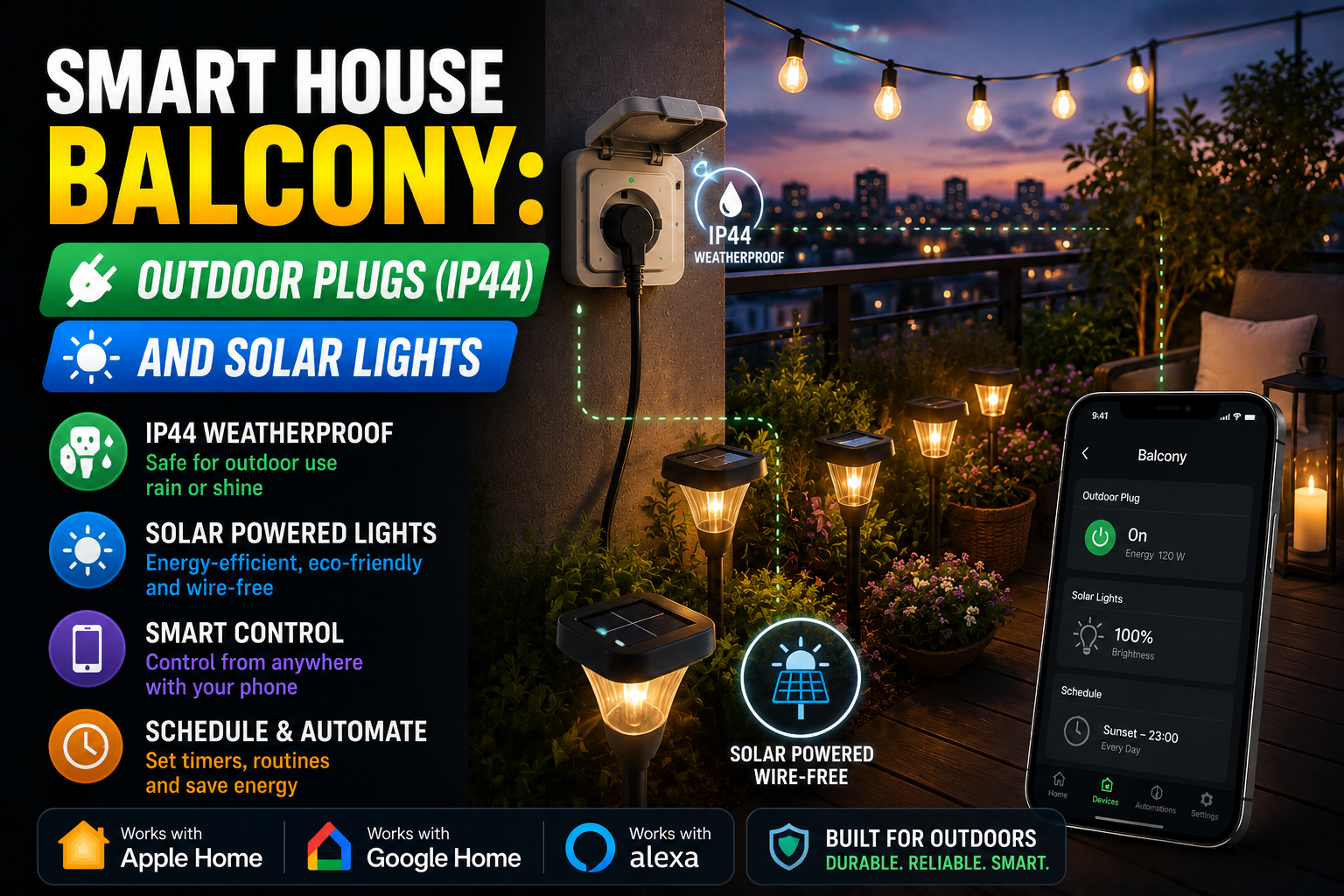
A typical home office desk runs a monitor, a dock, chargers, a desk lamp, and often a printer or a second monitor — all of which draw at least a small amount of power even when idle, and all of which are easy to forget about outside working hours. A smart plug or a smart power strip solves this cleanly. The TP-Link Kasa smart power strip and the Amazon-line equivalents are common choices here, offering several individually controllable outlets rather than a single switch for the whole desk, which matters because you likely want your computer to stay powered while your monitor, lamp, and printer shut off outside work hours.
The practical automation is simple and pays for itself in a small but real way: outlets for non-essential desk equipment turn on a few minutes before your typical start time and shut off a set time after your last calendar event or a manually triggered “end of day” routine. Beyond the modest energy savings, this also solves the very ordinary annoyance of a desk lamp or monitor being left on all night because nobody thought to walk over and switch it off.
Climate and Air Quality for Focus
Temperature swings and stale air are two of the most common — and most overlooked — causes of afternoon fatigue at a desk. A home office is often a room that isn’t prioritized by a whole-house HVAC system, which means it drifts warmer or cooler than the rest of the house over the course of a long working day.
Zoned Heating and Cooling
If your home has central heating and cooling with a smart thermostat, the same room-sensor approach used in smart bedrooms applies well to a home office. An Ecobee SmartThermostat with a remote sensor placed on your desk or a nearby shelf lets the system prioritize your actual working temperature rather than relying on a thermostat mounted in a hallway. A simple schedule — slightly cooler during focused work blocks, back to normal in the evening — keeps the room from drifting into the sluggish warmth that tends to creep in by mid-afternoon.
For rooms without central air, a smart plug controlling a small space heater or a Wi-Fi-enabled fan works almost as well, triggered by a schedule that matches your actual work hours rather than running continuously or being forgotten entirely.
Air Quality and CO2 Monitoring
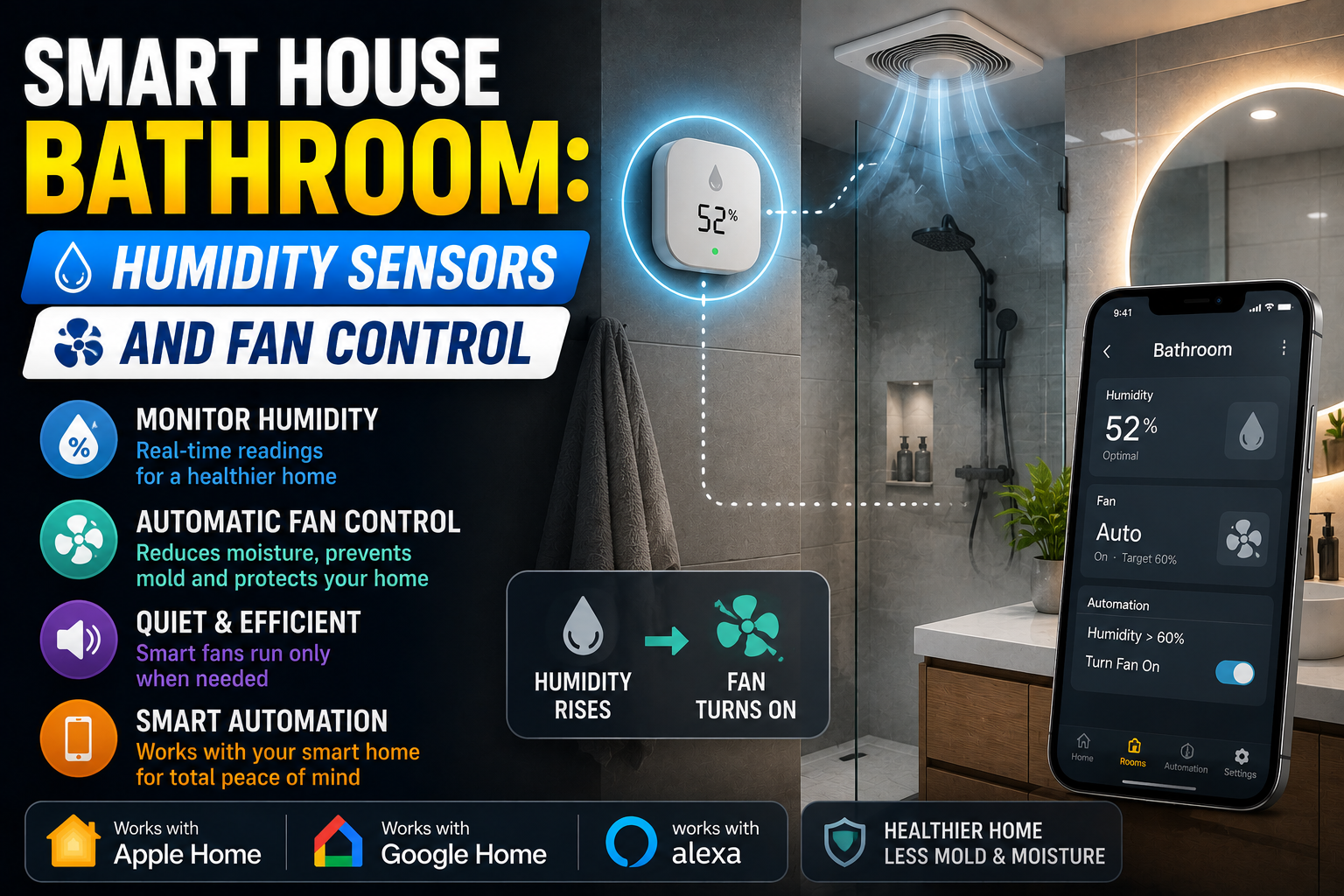
Less commonly discussed, but increasingly easy to fix, is indoor CO2 buildup in a closed home office — a well-documented contributor to that foggy, hard-to-concentrate feeling by early afternoon, especially in smaller rooms with the door shut for calls. A compact monitor like the Aranet4 or the Awair Element tracks CO2, temperature, and humidity, and while neither directly controls anything on its own, both can trigger a smart plug-connected fan or an automation reminder to crack a window once levels climb past a comfortable range. It’s a small addition, but for anyone who works from a smaller or poorly ventilated room, it’s often the single change that has the most noticeable effect on afternoon focus.
Protecting Focus Time: Do-Not-Disturb Automations
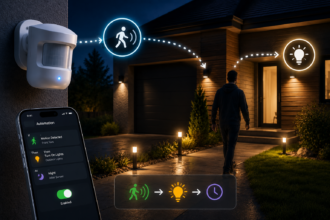
The last piece is less about hardware and more about using the smart devices you already have to protect concentration. A simple, effective setup uses a smart bulb or a small LED indicator light outside the office door — set to a solid color, often red or amber — as a visual “in a meeting, please don’t knock” signal, triggered automatically by your calendar rather than something you have to remember to turn on. Both Google Calendar and Outlook can trigger this through automation platforms like IFTTT or Home Assistant, syncing the light’s state directly to whether you currently have a meeting marked on your calendar.
The same calendar-based trigger works well paired with a smart speaker’s do-not-disturb mode, muting non-urgent notifications and announcements during marked meeting blocks, and it pairs naturally with the lighting presets described earlier — the same automation that turns on your “call mode” lighting a few minutes before a meeting can flip the hallway indicator light at the same time, with no extra setup required beyond the initial routine.
Tying It All Together: A Sample Home Office Automation Stack
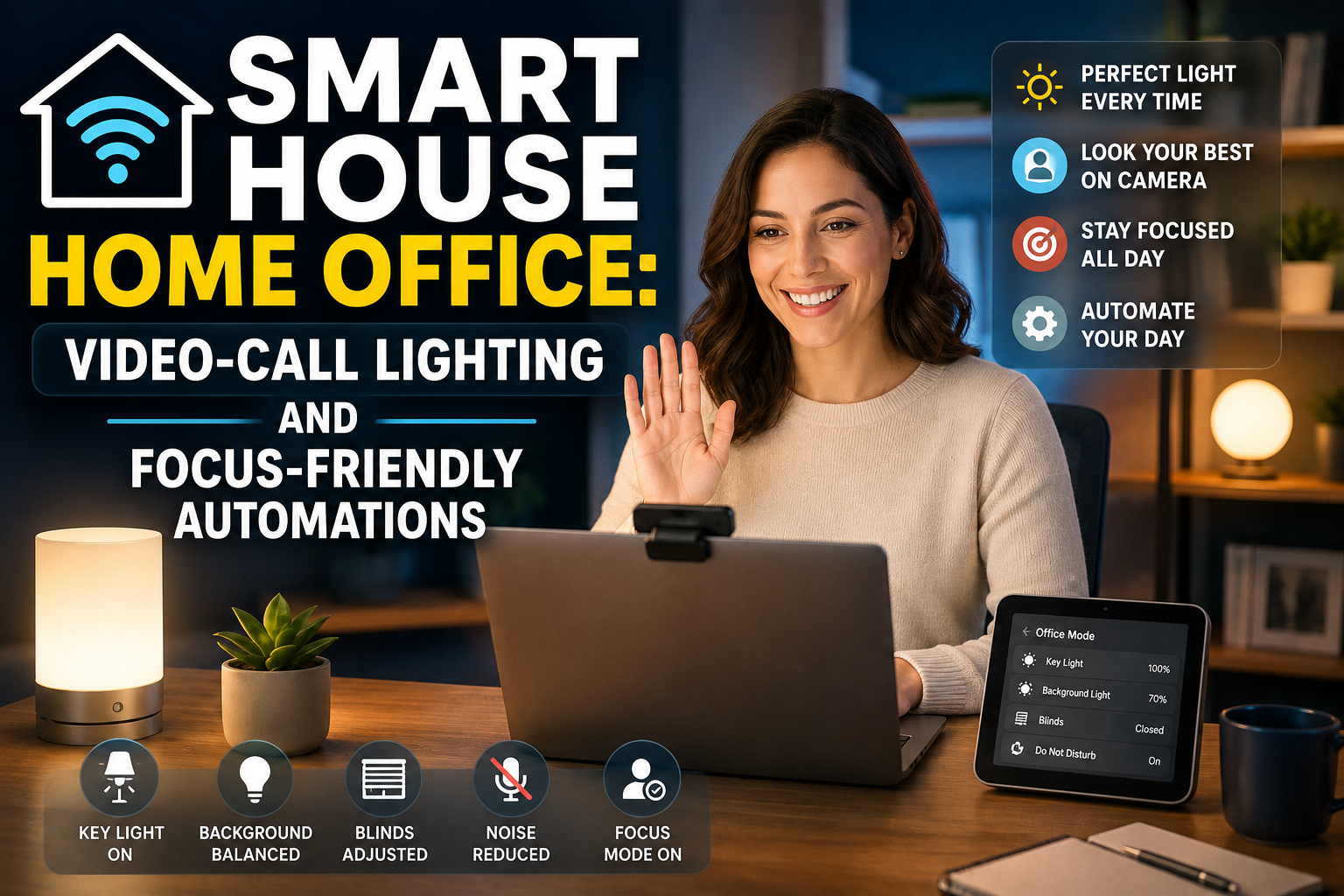
None of this needs to be complicated to be effective. A reasonable full setup looks like this: at 8:45 AM, desk outlets power on and lighting shifts to a warm, low “focus mode” scene. Five minutes before each calendar meeting, lighting automatically switches to “call mode” — brighter, more neutral white — and the hallway indicator light turns solid red for the meeting’s duration. Once the meeting ends, both revert automatically. If a CO2 monitor on the desk crosses a set threshold, a connected fan kicks on for fifteen minutes. At 6:00 PM, or whenever your last calendar event ends, desk outlets power down and lighting returns to a dim, ambient setting until the room is used again the next morning.
Every piece of this can be added gradually. A single smart bulb and a scheduled lighting scene is a reasonable place to start, with power automation, climate control, and calendar-based signaling layered in over time as you find where the friction actually is in your own routine.
Conclusion
A home office doesn’t need a dramatic transformation to feel meaningfully better to work in. The changes that matter most — flattering, reliable lighting for calls, equipment that powers down on its own, a room that doesn’t quietly overheat by 3 PM, and a simple signal that tells the rest of the house you’re not available — are all achievable with a handful of inexpensive, well-chosen devices and a few automations that only need to be set up once. The result isn’t a flashier room. It’s one that stops working against you during the exact hours you need it to work for you.