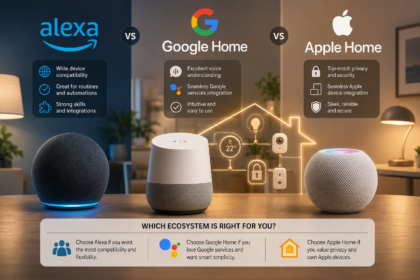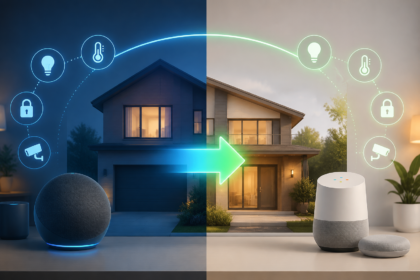

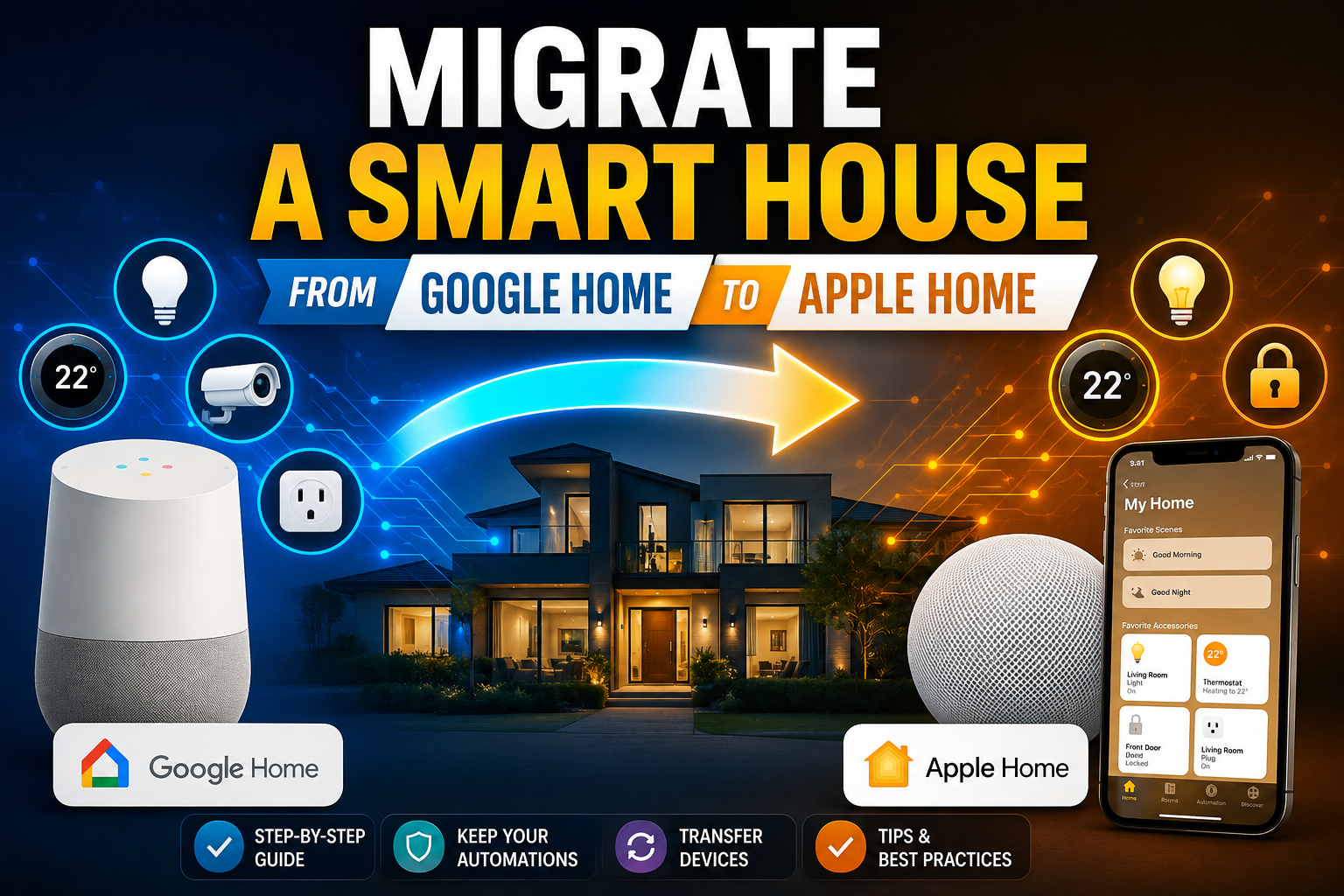
Making the jump from Google’s ecosystem to Apple’s isn’t just a phone upgrade decision anymore. For millions of people who’ve spent years building out a smart home — adding lights, thermostats, cameras, locks, and sensors one gadget at a time — switching ecosystems means confronting a web of devices, automations, and routines that don’t translate neatly from one platform to another. If you’re sitting there wondering whether your Nest thermostat will talk to HomeKit, or whether your Philips Hue scenes are going to survive the transition, this guide is for you.
- Why People Are Making the Switch to Apple Home
- The First Step: Taking Inventory of What You Actually Have
- Understanding Matter: The Wild Card That Changes Everything
- Setting Up Apple Home: What You Actually Need
- Living Through the Transition Period
- What Apple Home Still Doesn’t Do Well
- Conclusion: Is It Worth It?
Let’s be honest: migrating a smart home is one of those projects that sounds straightforward until you’re three hours in and your living room lights are stuck on at full brightness at 11 PM. The good news is that with a clear plan and realistic expectations, you can get there — and Apple Home has genuinely matured into a compelling platform, especially after the rollout of the Matter standard, which changed the compatibility landscape in ways that actually favor people making exactly this kind of switch.
Why People Are Making the Switch to Apple Home
Before getting into the how, it’s worth understanding the why — because not everyone should do this migration. If your household is fully invested in Android and Google services, Apple Home will feel like an uphill battle. But if you’re in the Apple ecosystem — iPhone, iPad, Mac, Apple TV, HomePod — then moving your smart home there starts to make a lot of sense.
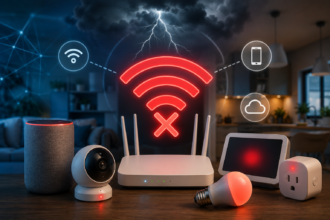
The main pull factors are privacy, local processing, and integration depth. Apple Home processes a lot of its automation logic locally on a HomePod mini or Apple TV acting as a home hub, which means your lights can still come on even if the internet is down. Google Home, by contrast, has historically leaned more on cloud processing, which makes it sensitive to outages. There’s also the matter of Siri Shortcuts integration, the Apple Watch app for home controls, and for some users, just the satisfaction of having everything live inside one ecosystem.
The push factors from Google’s side are equally real. Google has a track record of abruptly discontinuing products and features — Nest Secure, the Works with Nest program, various Google Home features that appeared and vanished — which creates understandable anxiety about long-term reliability. If you’ve watched Google quietly kill products you depended on, the appeal of migrating becomes clear.
The First Step: Taking Inventory of What You Actually Have
This is the part that most migration guides gloss over, but it’s genuinely the most important step. You cannot plan a migration without knowing what you’re migrating.
Go room by room and list every smart device in your home: brand, model, and what protocol it uses. This matters enormously because compatibility with Apple Home (HomeKit) is not universal, and the path forward is different depending on what you have.
Devices That Often Work Well
Philips Hue is probably the most HomeKit-friendly smart lighting ecosystem on the market — Hue bridges have supported HomeKit for years, and migrating is usually as simple as adding the bridge to the Home app. LIFX bulbs have direct HomeKit support. Most smart plugs from Eve, Meross, and Kasa (depending on model) have HomeKit support. Ecobee thermostats natively support HomeKit and are arguably a better HomeKit thermostat than any Nest product. Yale and Schlage have lock models with HomeKit support. Lutron Caseta — widely regarded as the most reliable smart switch system available — works with HomeKit via its Smart Bridge Pro.
The Nest Problem
Here’s where things get complicated: Nest devices, which many Google Home users have, are Google’s proprietary hardware and do not natively support HomeKit. Your Nest Thermostat, Nest Doorbell, or Nest cameras will not appear in Apple Home out of the box. This is a genuine obstacle, not a solvable-with-a-bridge situation in most cases.
For thermostats specifically, if you want to stay with a learning thermostat in Apple Home, the Ecobee SmartThermostat Premium is the natural replacement. It does most of what a Nest does, it has native HomeKit support, and its own Alexa integration doesn’t conflict with your Apple setup. Yes, replacing a Nest thermostat is an upfront cost, but if you’re serious about moving platforms, this is often unavoidable.
For Nest cameras and doorbells, some users run a parallel workaround using third-party bridges like Homebridge or Scrypted — open-source HomeKit bridge software that can expose unsupported devices to Apple Home. This works, but it requires running a small server (usually a Raspberry Pi or a spare Mac mini), and it’s not officially supported. For a tech-savvy user, it’s a great solution. For someone who just wants things to work without maintenance, it may add more frustration than it’s worth.
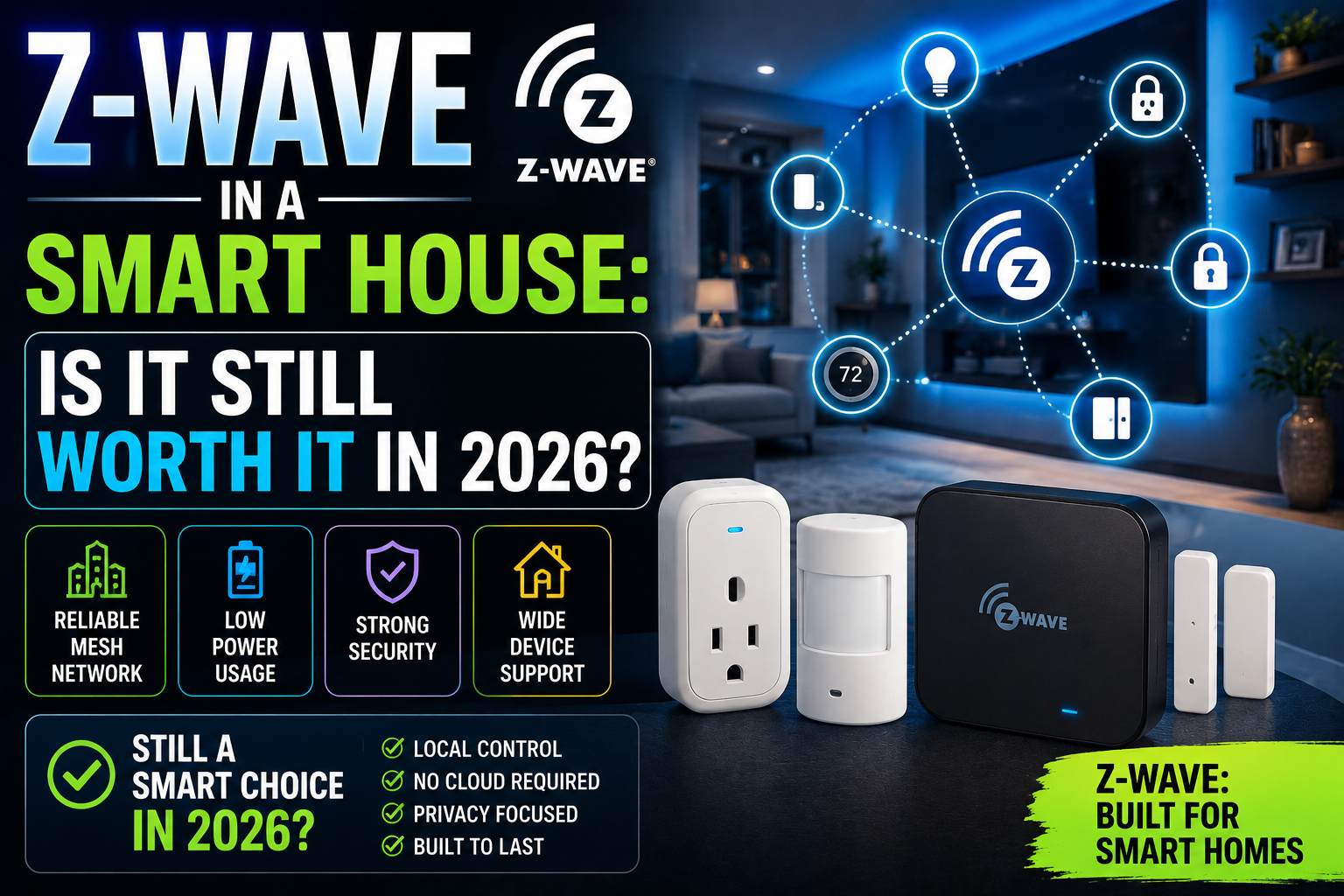
Understanding Matter: The Wild Card That Changes Everything
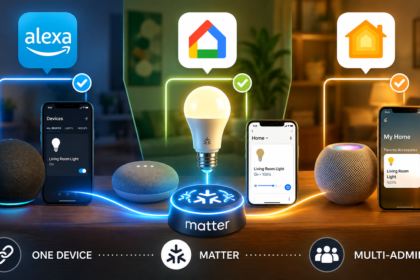
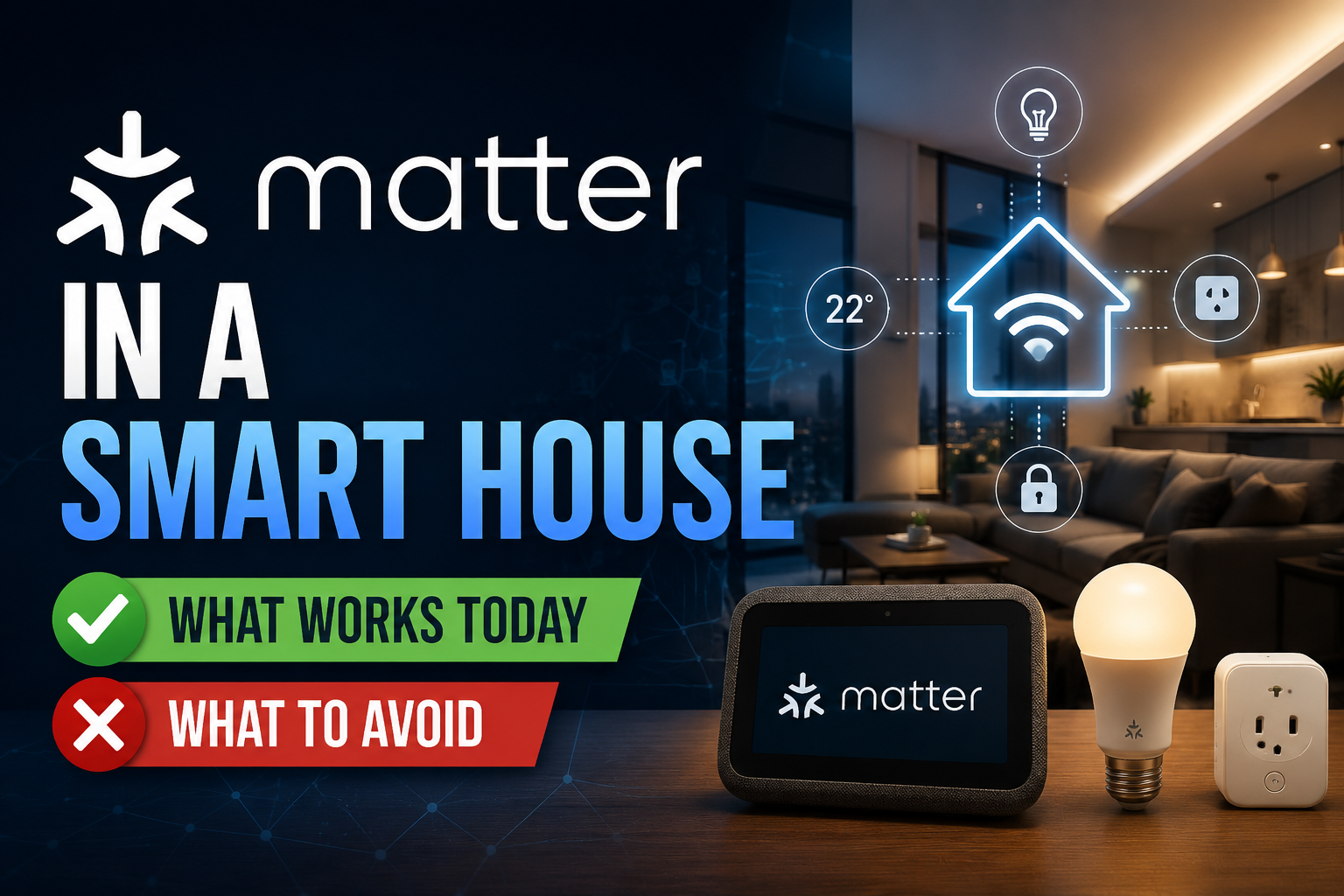
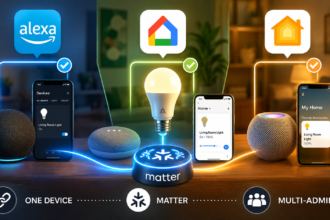
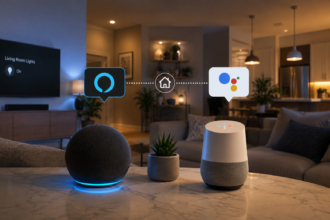
If you haven’t followed the smart home standards war, here’s what you need to know: Matter is a new interoperability standard backed by Apple, Google, Amazon, and Samsung, designed specifically so that one device can work with multiple ecosystems simultaneously. This changes the calculus for anyone doing a migration.
Many devices released in 2023 and 2024 support Matter — smart plugs, light bulbs, switches, thermostats, and increasingly, sensors and locks. If you have or are buying Matter-compatible devices, you don’t need to choose sides. A Matter light bulb can be controlled by Google Home and Apple Home at the same time, from the same app if you want, or from different apps depending on who’s in the room.
This means that for newer parts of your smart home setup, migration is much less painful. You can add a Matter device to Apple Home while keeping it in Google Home during the transition period, then remove it from Google Home once you’re confident in the new setup.
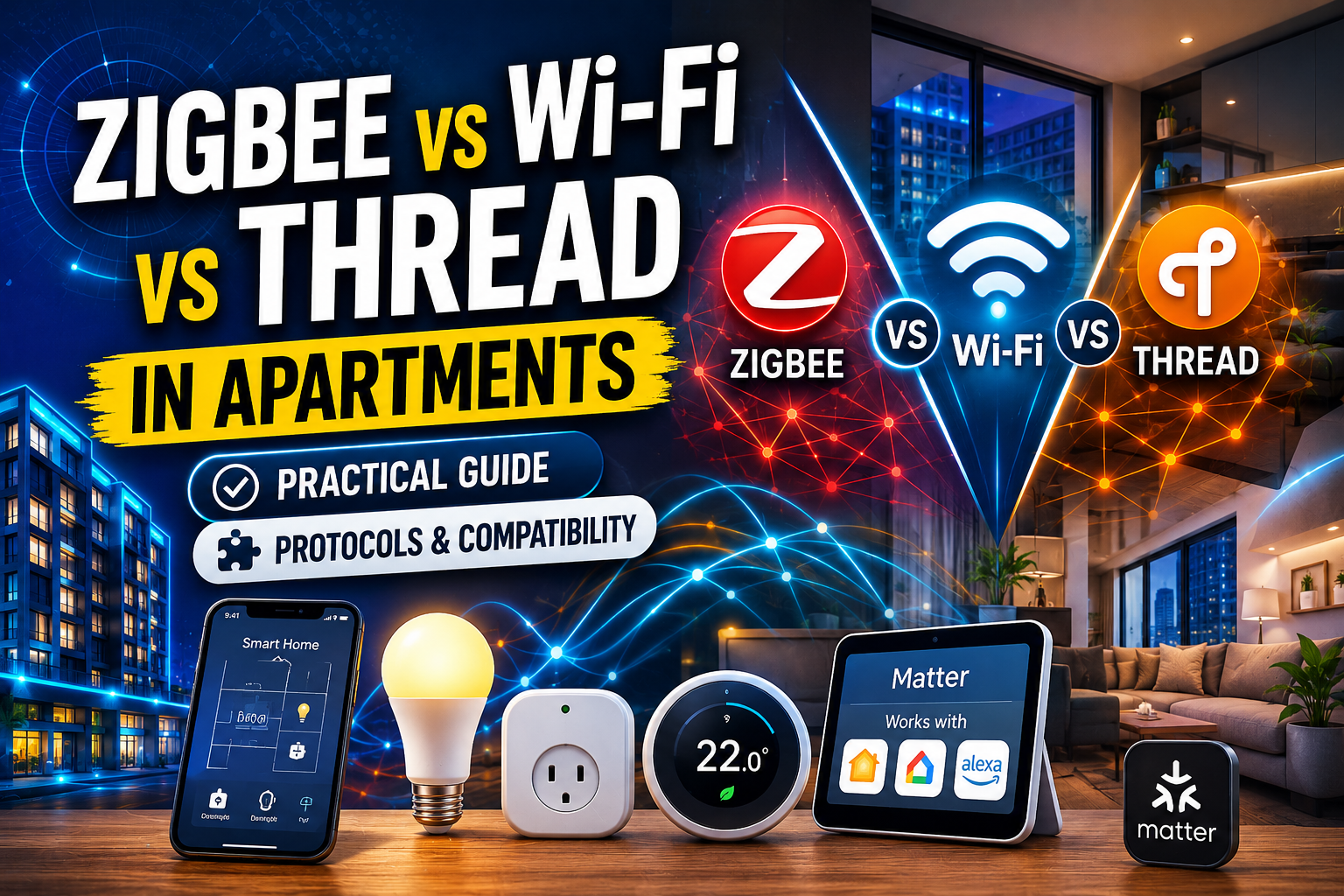
Practically speaking: before buying any replacement devices for your migration, check whether they support Matter. The Eve Energy smart plug, for example, supports Matter and works natively with Apple Home and Thread (Apple’s preferred low-power mesh networking protocol). Starting with Matter devices wherever possible gives you the most flexibility.
Setting Up Apple Home: What You Actually Need
Apple Home requires a home hub to enable remote access and automations. Your options are a HomePod (any generation), a HomePod mini, or an Apple TV 4K. If you don’t already have one of these, this is your first hardware purchase.
The HomePod mini is the most popular choice for this role — it’s compact, sounds decent for its size, and costs significantly less than a full HomePod. Many users have two or three distributed around the house for Siri coverage. The Apple TV 4K also works as a hub and is a good choice if you already use one for streaming.
Once you have a hub, open the Home app on your iPhone, set up your home, and begin adding devices. Adding a HomeKit device is typically done by scanning a QR code or an 8-digit HomeKit code that comes on the device or its box. For devices you’re migrating (like your Philips Hue bridge), you’ll need to factory reset them from Google Home first, then re-add them to Apple Home — they can’t be in both simultaneously without Matter.
Rebuilding Your Automations
This is the other time-consuming part of migration: your automations don’t transfer. Every Google Home routine you’ve built — “good morning” triggers, sunset-based lighting scenes, “everyone leaves” presence automations — needs to be manually recreated in the Home app or Shortcuts app.
The Home app handles basic automations well: device behavior based on time, presence (when you arrive or leave home), sensor triggers, and accessory state changes. For more complex logic, Apple Shortcuts can chain together multi-step automations with conditionals, time delays, and cross-app actions.
Take time with this step rather than rushing it. Document your existing Google Home routines before you dismantle them — screenshot everything, write down what each automation does and when. Then rebuild them methodically in Apple Home. Most users find that their automations actually end up cleaner after this process because the migration forces them to eliminate routines they set up years ago and never actually used.
Living Through the Transition Period
One underappreciated piece of advice: don’t pull the plug on Google Home all at once. Run both platforms in parallel for two to four weeks, adding devices to Apple Home gradually while keeping Google Home functional for the devices you haven’t migrated yet.
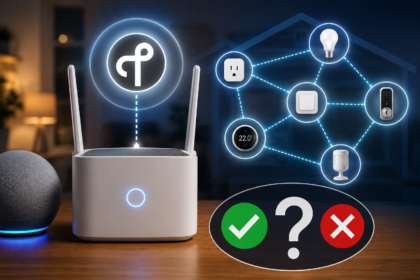
This approach is less satisfying than a clean cutover but dramatically reduces the risk of ending up with a house full of dumb devices because you moved too fast. It also gives you time to discover edge cases — the device that looked compatible but behaves strangely in HomeKit, the automation that doesn’t fire reliably, the room where your Thread mesh is weak and needs a router device.
Use the transition period to test your Apple Home setup under real conditions: does the morning automation fire correctly? Does the presence detection work when two family members are coming and going? Does Siri respond reliably to voice commands across your HomePods?
What Apple Home Still Doesn’t Do Well
Honesty requires acknowledging the gaps. Apple Home’s device compatibility is still narrower than Google Home’s or Alexa’s — not dramatically so in 2025, especially with Matter filling many gaps, but narrower. Some budget smart home brands don’t have HomeKit support and may never get it. Certain security camera features that work in Google Home (continuous recording, complex detection zones) may be limited or require moving to a supported camera brand like Arlo or Logitech.
The Home app’s interface has improved significantly in recent iOS versions, but managing a large home with many devices still requires more navigation than it should. Google Home’s dashboard remains more flexible for users with dozens of devices across many rooms.
Apple’s voice assistant, Siri, is also more limited than Google Assistant for general queries and contextual follow-up questions — though for pure home control commands, the gap has narrowed considerably.
Conclusion: Is It Worth It?
For most Apple ecosystem users, yes — the migration is worth the effort. The combination of local processing, deep iOS/iPadOS/macOS integration, Matter compatibility for future-proofing, and Apple’s privacy-forward approach creates a smart home platform that genuinely rewards the investment. The transition is work, and it requires accepting some upfront costs if you need to replace incompatible devices like Nest thermostats or cameras. But the end result — a home that talks fluently to your iPhone, Apple Watch, and HomePods, responds reliably without cloud dependencies, and slots neatly into your existing Apple life — is hard to argue with once you experience it.
The key is to go in with a plan: inventory your devices, identify the compatibility gaps, prioritize Matter hardware for replacements, set up your hub first, and migrate in stages rather than all at once. Do that, and what sounds like a daunting project becomes a manageable one.