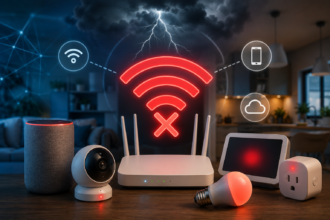

Smart plugs unresponsive, bulbs stuck “offline,” sensors that miss half their events. Here’s the protocol-level reason your smart home keeps dropping devices — and the fixes that actually hold.
- The First Question: Which Protocol Is Actually Dropping?
- Wi-Fi Devices: Death by a Thousand Cuts
- Zigbee Devices: When the Mesh Isn’t Meshing
- Thread Devices: A Newer Mesh With Its Own Quirks
- Matter-Specific Failures: Fabrics, Not Just Networks
- Hub and Bridge Problems That Look Like Device Problems
- The Router Itself: The Most Overlooked Culprit
- A Room-by-Room Diagnostic Method
- Building a Network That Doesn’t Need Constant Babysitting
- When It’s Time to Replace a Device Instead of Troubleshoot It
- Conclusion: Stability Is a Design Choice, Not Luck
There’s a specific kind of frustration that only smart home owners understand. You walk in, say “turn on the lights,” and nothing happens. You open the app, and half your devices show a gray dot instead of a green one. You restart the hub, unplug the router, maybe even factory-reset a bulb out of pure spite — and it works again, for a while. Then, a week later, it’s back.
If this sounds familiar, you’re not imagining it, and you’re not alone. Device dropouts are one of the most common complaints in smart home forums, and yet most troubleshooting advice stops at “restart your router,” which fixes the symptom without ever explaining the cause. The truth is that most disconnection problems aren’t random. They’re the predictable result of how Wi-Fi, Zigbee, Thread, and Matter actually behave once you load a house full of devices onto them — and once you understand the mechanics, most of these issues are fixable in an afternoon, not a lifetime of restarts.
This guide walks through the real, protocol-level reasons your devices go offline, broken down by network type, and gives you the specific fix for each one. If you’re building a smart home from scratch, it’s worth reading alongside our guide to Wi-Fi, Zigbee, Thread, and Matter explained for total beginners, since understanding how each protocol is supposed to behave makes it much easier to spot when it isn’t.
The First Question: Which Protocol Is Actually Dropping?
Before touching a single setting, figure out which layer of your smart home is failing, because the fix is completely different depending on the answer. Open your hub or app and check whether the dropouts are:
- Isolated to Wi-Fi devices — plugs, some cameras, and older bulbs that connect directly to your router.
- Isolated to Zigbee devices — usually anything paired through a Hue Bridge, SmartThings hub, Aqara hub, or a Zigbee-based system.
- Isolated to Thread devices — newer sensors, plugs, and bulbs that rely on a Thread border router like a HomePod mini, Apple TV, Nest Hub, or Echo (4th gen and later).
- Everything at once, across every protocol — which almost always points to the router or the internet connection itself, not the devices.
This distinction matters because these are fundamentally different radio technologies with different failure modes. A Wi-Fi smart plug going offline is often a channel congestion problem. A Zigbee bulb going offline is often a mesh routing problem. A Thread sensor going offline is often a border router handoff problem. Treating all three the same way — the classic “unplug everything and pray” approach — is why so many people end up stuck in a loop of temporary fixes.
Wi-Fi Devices: Death by a Thousand Cuts
Wi-Fi is the protocol most smart home owners understand the least, mostly because it’s the one they assume they already understand from using it for laptops and phones. But smart home devices use Wi-Fi very differently than a laptop does, and that difference is where most of the problems start.
The 2.4GHz Traffic Jam
The overwhelming majority of smart plugs, budget cameras, and older smart bulbs only support the 2.4GHz band, not 5GHz. That band has fewer non-overlapping channels (typically just three usable ones in most regions: 1, 6, and 11), and it’s shared with cordless phones, microwaves, baby monitors, and — critically — your neighbors’ routers if you live in an apartment or a dense suburb. A single microwave running for two minutes can knock out every 2.4GHz device in your kitchen. This is exactly the kind of shared-spectrum congestion we cover in more depth in our guide to Zigbee vs. Wi-Fi vs. Thread in apartments, where wall density and neighboring networks make this problem measurably worse.
The fix: Log into your router and manually set your 2.4GHz channel to 1, 6, or 11 instead of leaving it on “auto.” Auto-channel selection sounds convenient, but many routers only re-scan for interference every few hours, which means your devices can sit on a congested channel for most of the day before the router notices. Use a Wi-Fi analyzer app to see which channel your neighbors are least crowded on, and lock yours there manually.
Router Client Limits and DHCP Lease Exhaustion
Consumer routers, especially ones provided by an ISP, often have soft limits on how many simultaneous devices they can reliably serve — sometimes as low as 30 to 50 clients before performance degrades, even if the router “supports” more on paper. A house with 25 smart plugs, 10 bulbs, a few cameras, laptops, phones, and streaming devices can quietly exceed that ceiling. When it does, the router doesn’t crash — it just starts dropping and re-adding devices unpredictably, which looks exactly like random device failure.
The fix: Check your router’s connected devices list and count. If you’re above 40–50 devices on a single consumer router, it’s time for either a mesh system built for higher device density (look specifically for router specs that mention client capacity, not just speed) or a dedicated access point for your smart home devices, separate from the one your laptops and phones use.
Band Steering Gone Wrong
Many modern routers broadcast a single network name for both 2.4GHz and 5GHz and automatically decide which band to put each device on — a feature called band steering. This is great for phones and laptops, which can handle either band fine. It’s terrible for smart home devices that only support 2.4GHz, because band steering sometimes tries to force them onto 5GHz anyway, fails silently, and leaves the device in a connection limbo where it thinks it’s connected but the router doesn’t.
The fix: If your router allows it, split your 2.4GHz and 5GHz networks into separate SSIDs (like “HomeNetwork” and “HomeNetwork-5G”) and manually connect all 2.4GHz-only devices to the 2.4GHz-specific name. This removes the guesswork entirely.
Firmware Rot
Cheap smart plugs and bulbs, especially ones sold under generic Amazon brands, often stop receiving firmware updates within a year or two of release. Meanwhile, your router’s firmware keeps evolving, sometimes introducing stricter security protocols (like WPA3) that older, abandoned smart devices simply can’t negotiate anymore. This is an incredibly common and rarely diagnosed cause of “it worked fine for a year and then just stopped.”
The fix: If a device is more than two years old, check the manufacturer’s app or website for a changelog. No updates in over a year is a strong signal the device’s firmware has fallen behind your router’s security requirements. In this case, keeping a WPA2/WPA3 mixed-mode network (rather than WPA3-only) preserves compatibility with older hardware, at a small security tradeoff worth knowing about.
Zigbee Devices: When the Mesh Isn’t Meshing
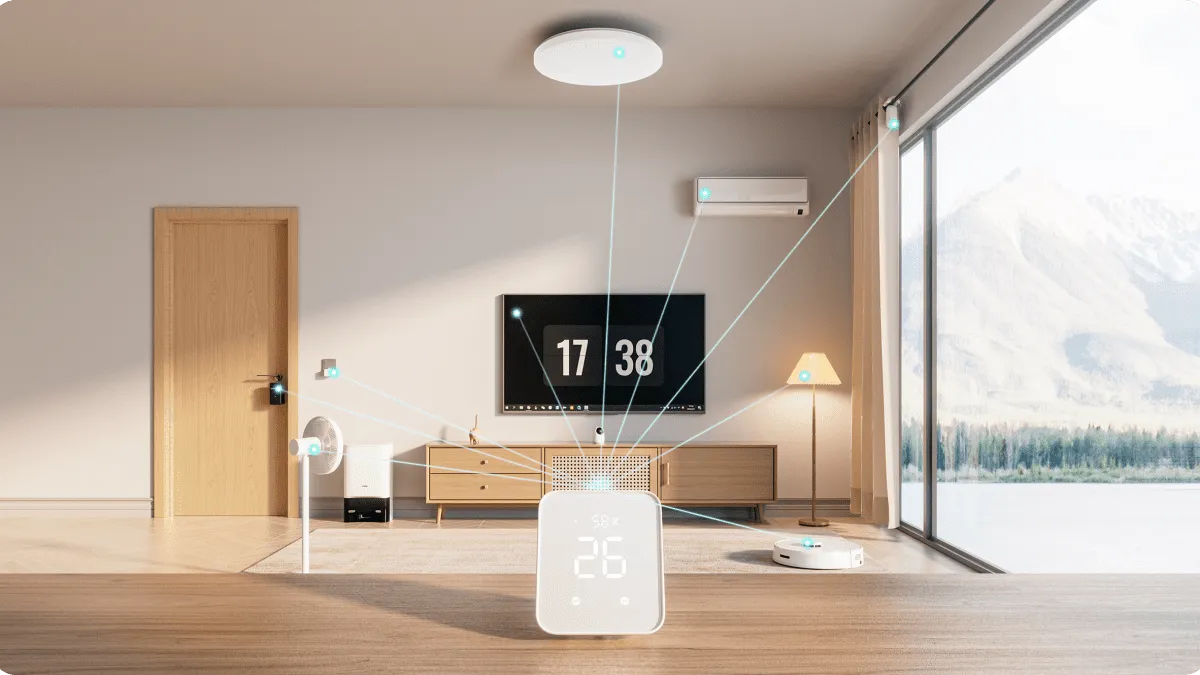
Zigbee’s whole pitch is that it’s a self-healing mesh network — every mains-powered device (plugs, bulbs, in-wall switches) acts as a repeater for the signal, so the more devices you add, the stronger the network theoretically gets. In practice, that mesh only works well when it’s built correctly, and most people build it by accident rather than by design.
Battery Devices Aren’t Repeaters
This is the single most misunderstood fact about Zigbee. Only mains-powered devices extend the mesh. Battery-powered sensors, buttons, and battery bulbs are “end devices” — they connect to the nearest repeater but don’t relay signal for anyone else. If your Zigbee network is mostly battery sensors with only one or two mains-powered devices near your hub, you effectively have a hub-and-spoke network dressed up as a mesh, and any sensor more than one room away from the hub is going to struggle.
The fix: Deliberately place mains-powered Zigbee devices — smart plugs are the cheapest option — throughout the house specifically to extend coverage, not just where you happen to need an outlet controlled. A $10 Zigbee plug in a hallway between two rooms full of sensors can dramatically improve reliability for devices that never even touch that plug directly.
Interference From Your Own Wi-Fi Router
Zigbee operates on the 2.4GHz band, in the same general spectrum as Wi-Fi. If your Zigbee hub or coordinator is sitting directly next to your Wi-Fi router — which is extremely common, since people tend to cluster all their networking equipment in one spot — the two networks compete for clean spectrum, and Zigbee usually loses because it transmits at much lower power.
The fix: Set your Zigbee coordinator’s channel to one that doesn’t overlap with your Wi-Fi channel. If your Wi-Fi is on channel 1, use Zigbee channel 25 or higher; if Wi-Fi is on 6, use Zigbee channel 11 or 15. Most hub apps (SmartThings, Hubitat, Home Assistant’s ZHA or Zigbee2MQTT) let you view and change this in advanced settings. Physically separating the coordinator from the router by even a few feet also helps more than most people expect.
Ghost Devices and Routing Table Bloat
Zigbee coordinators maintain a routing table that tracks how to reach every device on the mesh. When devices are removed improperly (unplugged and thrown away instead of factory-reset and removed through the app), they can leave “ghost” entries in that table that the coordinator keeps trying to route around, subtly degrading performance for everything else.
The fix: Periodically audit your device list in the hub app and formally remove anything that no longer exists. If you’re on a platform that supports it (Home Assistant is the most transparent here), you can view the actual mesh topology map and spot dead branches directly.
Thread Devices: A Newer Mesh With Its Own Quirks
Thread is the newest of the three mesh-capable protocols, and it’s generally more resilient than Zigbee by design — it uses IPv6 addressing and can route around a single failed node more gracefully. But “more resilient” doesn’t mean “immune,” and Thread’s failure modes tend to be less well understood simply because it’s newer.
Not Enough Border Routers, or Too Many Conflicting Ones
A Thread network needs at least one border router to bridge the mesh to your regular IP network, but the more interesting failure case is having several border routers from different ecosystems that don’t fully agree on network leadership. If you have an Apple HomePod mini, a Google Nest Hub, and an Amazon Echo all acting as Thread border routers in the same house, they’re technically supposed to cooperate on a shared Thread network credential set — but in practice, this cooperation is still maturing, and devices can occasionally get “confused” about which border router should be routing their traffic, leading to intermittent drops that seem to happen for no reason.
For a full breakdown of what these devices are, which ones do the job well, and when you genuinely need one versus when your existing devices already cover it, see our dedicated guide on Thread border routers explained.
The fix: Where possible, standardize on Thread border routers from a single ecosystem, particularly the one you use as your primary smart home app. If you must run multiple ecosystems, keep border router placement spread out so each one is clearly the “closest” option for the devices near it, reducing ambiguous handoffs.
Thread Devices Behind Metal or Dense Materials
Thread signal, like most 2.4GHz-band radio, is attenuated significantly by metal enclosures, mirrors, and dense masonry. A Thread sensor mounted inside a metal appliance housing or behind a large mirror can appear to drop constantly even though the rest of your Thread mesh is fine.
The fix: Relocate the device a few inches if possible, or add a mains-powered Thread device (some smart plugs now support Thread specifically as routers, not just border routers) nearer to the problem spot to give the mesh an easier hop.
Matter-Specific Failures: Fabrics, Not Just Networks
This is the failure category most people misdiagnose, because it looks like a network problem but is actually a Matter-specific quirk: fabric fragmentation.
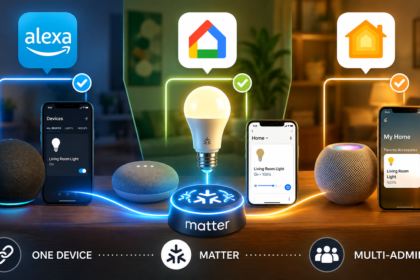
When you commission a Matter device to a platform — say, Apple Home — that platform creates what’s called a “fabric,” essentially its own private credential relationship with the device. If you then also add that same device to Google Home, Google Home creates a second, independent fabric on the same physical device. Most Matter devices only support a limited number of simultaneous fabrics (often five, sometimes fewer depending on the chipset), and here’s the part that trips people up: removing a device from one platform doesn’t always cleanly remove that platform’s fabric from the device itself, especially if the removal happens through an unusual method, like deleting the device from an automation instead of the main device list.
Over time, especially in households that have switched ecosystems or experimented with multiple hubs (a common scenario we cover in our guides on migrating from Alexa to Google Home and migrating from Google Home to Apple Home), a device can accumulate several “orphaned” fabrics from platforms it’s no longer actively used on, eventually hitting its fabric limit. When that happens, the device can behave erratically on the platforms you do still use, sometimes going unresponsive for no apparent reason.
The fix: If a Matter device has been through more than one ecosystem in its lifetime and is misbehaving, the most reliable solution is a full factory reset and clean re-commissioning, rather than trying to remove it gracefully from a platform you’re not sure it’s still properly registered on. It’s tedious, but it clears every fabric at once and starts fresh.
Shared Access Isn’t the Same as Shared Control
A second, more subtle Matter issue: even though a device can be controlled from multiple platforms, automations are not shared. An automation you build in Apple Home that turns a Matter plug off at 11pm has no idea an automation you also built in Google Home turns it on at 11:05. Because both platforms have legitimate, independent control, you can end up with devices that seem to be “fighting” themselves — which isn’t a connectivity problem at all, just conflicting logic across ecosystems. Our deeper look at where Matter works well and where it still falls short goes further into which categories are safe to run multi-platform and which ones you’re better off controlling from a single app.
The fix: Pick one platform as the “source of truth” for automations involving any given device, even if it stays commissioned to multiple platforms for manual control. This is more of a workflow discipline than a technical fix, but it eliminates an entire category of phantom behavior that looks like a dropout but is actually a logic conflict.
Hub and Bridge Problems That Look Like Device Problems
Sometimes the device is completely fine, and the actual failure point is the hub sitting between it and your phone. This is especially common with cheaper hubs that weren’t built with enough processing headroom for the number of devices they’re now managing.
Hubs running Zigbee2MQTT, Home Assistant’s ZHA, SmartThings, or a Hue Bridge all maintain an internal state and message queue. When a hub is overloaded — usually from having too many devices reporting too frequently, or from running on underpowered hardware like an old Raspberry Pi — it can start silently dropping incoming messages rather than crashing outright. This shows up as devices going “offline” in your app even though, if you checked their status lights directly, they’d show they’re perfectly connected to the mesh.
The fix: Check your hub’s own resource usage if it exposes that information (CPU and memory, for hubs running on general-purpose hardware). If you’re consistently seeing high utilization, especially during specific times of day when a lot of devices report simultaneously (like sunrise/sunset triggering every light-sensitive device at once), consider staggering polling intervals where your platform allows it, or upgrading to hub hardware with more headroom. For anyone still deciding whether they need a hub at all, our guide on whether you actually need a smart home hub and our broader breakdown of which hub to choose are worth reading before you invest in an upgrade.
The Router Itself: The Most Overlooked Culprit
If your dropouts span every protocol at once — Wi-Fi, Zigbee, and Thread devices all misbehaving around the same time — the problem almost certainly isn’t any individual device or protocol. It’s your router, your internet connection, or your ISP’s equipment.
A few specific things to check:
- ISP-provided router age. Many ISP-supplied combo router/modem units are not designed with a smart home’s device count in mind. They’re built for a household with a handful of laptops and phones, not 60+ IoT devices. If your router is ISP-supplied and more than three or four years old, it’s worth testing with a dedicated consumer router instead, even temporarily, to see if the problem disappears.
- DNS resolution issues. Some smart home platforms rely on cloud check-ins even for local commands. If your router’s DNS is slow or unreliable, devices can appear offline in the app even though local control still technically works. Switching to a faster public DNS (like 1.1.1.1 or 8.8.8.8) on your router is a five-minute test that occasionally solves what looks like a much bigger problem.
- NAT table exhaustion. Every device maintaining a connection to the internet consumes an entry in your router’s NAT table. Budget routers often have small NAT tables that get exhausted well before you’d expect, given the number of devices reporting home to cloud services every few seconds. Symptoms include devices reconnecting for a few minutes, then dropping again in a cycle. This is a known limitation on many mid-range consumer routers and one of the more common invisible ceilings in a growing smart home.
A Room-by-Room Diagnostic Method
If you’re dealing with dropouts and don’t know where to start, this sequence will get you to an answer faster than randomly restarting things:
- Note the exact devices and rooms affected, and whether it’s the same handful every time or random. Consistent locations point to physical interference or dead zones; random devices point to network capacity or firmware issues.
- Check the protocol for each affected device, using the breakdown at the top of this guide.
- Time-correlate the drops. Do they happen at the same time each day? That often points to a scheduled process — a router reboot script, an ISP maintenance window, or a burst of simultaneous automations (like every light in the house triggering at sunset) overwhelming a hub.
- Test in isolation. Temporarily move a misbehaving battery sensor next to your hub or nearest repeater. If it becomes reliable, the problem is mesh coverage, not the device itself. If it’s still flaky right next to the hub, the device itself is likely failing.
- Check firmware and app versions last, not first. It’s tempting to blame outdated firmware immediately, but doing the network diagnostics first prevents you from chasing an update that wasn’t the actual issue.
Building a Network That Doesn’t Need Constant Babysitting
Once you’ve fixed the immediate problem, the more valuable step is building things so you don’t end up back here in six months. A few principles that hold up regardless of which ecosystem you’re on:
- Separate your smart home traffic from your entertainment traffic where your router allows it, using a guest network or a VLAN dedicated to IoT devices. This limits how much a misbehaving device or a Wi-Fi-hungry 4K stream can affect the other.
- Buy mains-powered devices deliberately as infrastructure, not just for the function they perform. A smart plug in an awkward spot that nobody really needs to control might still be worth installing purely because it extends your Zigbee or Thread mesh into a dead zone.
- Keep a simple log of what’s connected to what. It sounds excessive, but when you’re troubleshooting six months from now, remembering which hub or app a specific bulb was originally commissioned through saves enormous time.
- Standardize where you reasonably can. A house running one Zigbee hub, one Thread border router ecosystem, and Matter as the cross-platform layer on top will almost always be more stable than one running four overlapping systems that all think they’re in charge of the same devices.
When It’s Time to Replace a Device Instead of Troubleshoot It
Not every dropout is worth chasing forever. If a device is more than three or four years old, no longer receiving firmware updates, and continues to misbehave after you’ve ruled out network-level causes, it’s often cheaper in time and sanity to replace it than to keep debugging it. This is especially true for early-generation Zigbee devices from brands that have since been acquired or discontinued, where the underlying firmware will simply never improve.
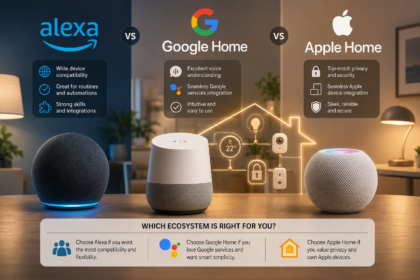
If you’re at the point of replacing several devices at once, it’s worth stepping back and reconsidering your protocol strategy entirely rather than just buying the same type of device again. Our guide on whether Z-Wave is still worth it in 2026 and our ecosystem comparison, Alexa vs. Google Home vs. Apple Home, are both useful starting points if a wave of replacements has you reconsidering the bigger picture rather than just swapping like for like.
Conclusion: Stability Is a Design Choice, Not Luck
The uncomfortable truth about smart home reliability is that most people build their network the same way they’d buy furniture — one piece at a time, based on immediate need, without much thought for how it all fits together. That approach works fine for the first ten devices. Somewhere past twenty or thirty, the gaps start to show: the 2.4GHz channel that was fine with three plugs is congested with fifteen, the Zigbee mesh that worked with one hub nearby has dead zones two rooms away, and the router that handled a normal household now has to referee sixty devices arguing for its attention.
None of this means smart homes are inherently unreliable. It means reliability is something you have to design for deliberately, the same way you’d plan electrical circuits or plumbing runs rather than improvising them room by room. Once you understand that a Wi-Fi plug failure, a Zigbee sensor failure, and a Matter device failure are three completely different problems with three completely different fixes, the constant cycle of restarts and resets stops being a mystery and starts being a checklist.
The households that stop fighting their smart homes aren’t the ones with the newest gadgets. They’re the ones who took an afternoon to actually understand what protocol each device speaks, gave each of those protocols the coverage and headroom they need, and stopped expecting a single router and a single hub to silently absorb the growing complexity of a system that, by now, is arguably running more devices than most small offices did a decade ago. Get that foundation right, and the green dots stay green.